TestPlanIt for Jira
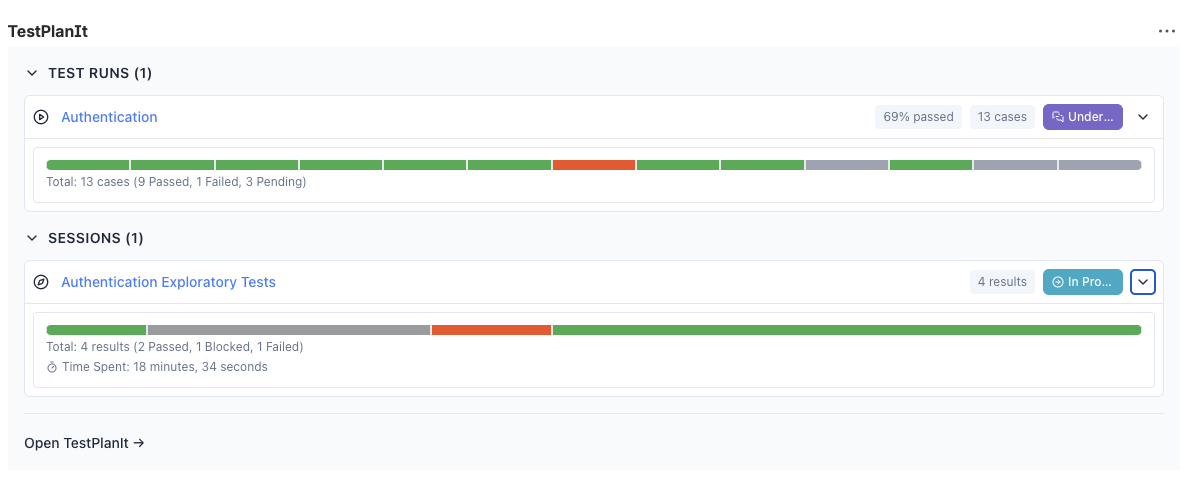
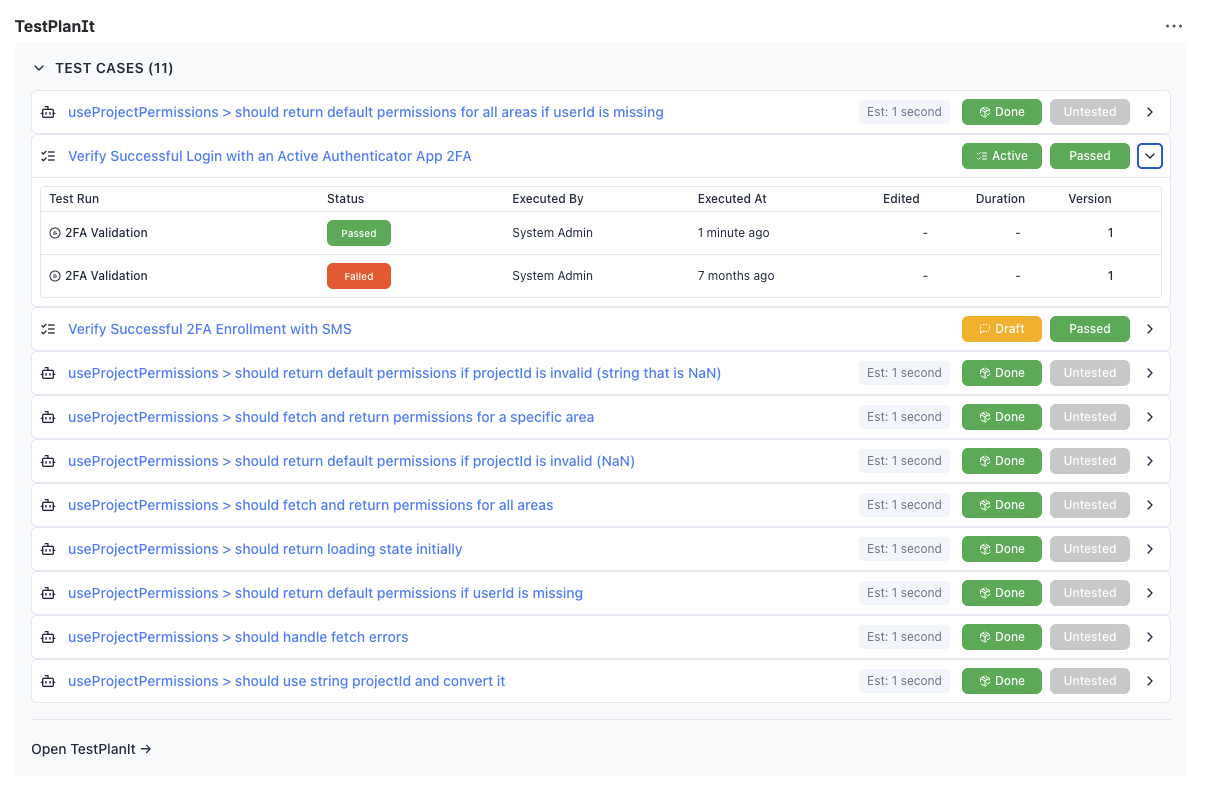
The TestPlanIt for Jira app is an Atlassian Forge app that displays test cases, test runs, and exploratory testing sessions directly in Jira issue panels.
Features
- Issue Panel — View linked test cases, test runs, and sessions on every Jira issue
- Settings Page — Admin configuration for your TestPlanIt instance URL and API key
- Secure Authentication — API key authentication with timing-safe validation
Test Runs & Sessions
Test Cases
Requirements
- Jira Cloud (Software)
- A TestPlanIt instance hosted on a
*.testplanit.comsubdomain
The Marketplace version of this app only works with *.testplanit.com subdomains (e.g., https://demo.testplanit.com). This is an Atlassian Forge security requirement — apps must explicitly whitelist external domains in the manifest.
If you self-host TestPlanIt on a custom domain, see Custom Domain Setup below.
Installation
From the Atlassian Marketplace
- Search for "TestPlanIt for Jira" on the Atlassian Marketplace
- Click Install and select your Jira instance
Manual Installation (Development)
cd forge-app
npx forge install
Select your Jira instance when prompted.
Configuration
Step 1: Generate a Forge API Key in TestPlanIt
- Log into your TestPlanIt instance as an admin
- Go to Admin > Integrations
- Find or create a Jira integration
- Click Generate Forge API Key
- Copy the generated key
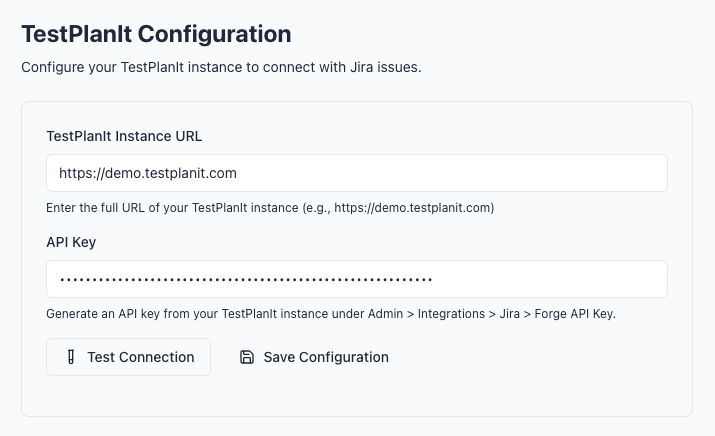
Step 2: Configure the App in Jira
- In Jira, go to Settings (gear icon) > Apps > TestPlanIt Settings
- Enter your TestPlanIt Instance URL (e.g.,
https://yourcompany.testplanit.com) - Enter the Forge API Key from Step 1
- Click Test Connection to verify connectivity
- Click Save Configuration
Step 3: Verify
Navigate to any Jira issue that has linked test cases in TestPlanIt. The TestPlanIt panel will appear on the right side showing:
- Test Cases — Linked test cases with status
- Test Runs — Recent test runs referencing this issue
- Sessions — Exploratory testing sessions linked to this issue
Click any item to open it directly in TestPlanIt.
Linking Tests to Jira Issues
Tests are linked by associating Jira issue keys in TestPlanIt:
- In TestPlanIt, navigate to a test case, test run, or session
- Link it to a Jira issue using the issue key (e.g.,
PROJ-123) - The linked test will automatically appear in the Jira issue panel
Troubleshooting
"Not Configured" Message
The app hasn't been configured yet. Go to Jira Settings > Apps > TestPlanIt Settings and enter your instance URL and API key.
Connection Test Fails
- Verify the URL is correct and uses
https:// - Ensure the URL is a
*.testplanit.comsubdomain - Check that your TestPlanIt instance is accessible
- Make sure there's no trailing slash in the URL
401 Unauthorized Error
- Verify the Forge API Key is correct
- Regenerate the key in TestPlanIt if needed: Admin > Integrations > Jira > Forge API Key
- Make sure you're using the Forge API Key, not a regular API token
Panel Shows "No Tests Linked"
- Confirm that test cases are linked to this Jira issue in TestPlanIt
- Check that the Jira issue key matches exactly (e.g.,
PROJ-123)
Check Forge Logs
For deeper debugging, use the Forge CLI:
cd forge-app
npx forge logs
Custom Domain Setup
If your TestPlanIt instance runs on a custom domain (not *.testplanit.com), you cannot use the Marketplace version. Instead, deploy your own Forge app:
- Clone the TestPlanIt repository
- Edit
forge-app/manifest.yml— replace the domain whitelist with your domain:permissions:
external:
fetch:
backend:
- 'your-domain.com'
- '*.your-domain.com'
client:
- 'your-domain.com'
- '*.your-domain.com'
images:
- 'your-domain.com'
- '*.your-domain.com' - Create a new Forge app at the Atlassian Developer Console
- Update the
app.idinmanifest.ymlwith your new app ID - Build and deploy:
cd forge-app
npm install
npm run build
npx forge deploy
npx forge install
See CUSTOM_DOMAIN_SETUP.md for the full guide.
Technical Details
- Platform: Atlassian Forge (Custom UI)
- Runtime: Node.js 20.x
- Frontend: React 18 with Tailwind CSS
- Backend: Forge Resolver functions
- Storage: Forge Storage API (per-installation key-value store)
API Endpoints Used
The app calls these endpoints on your TestPlanIt instance:
| Endpoint | Purpose |
|---|---|
GET /version.json | Connection test (returns app version) |
GET /api/integrations/jira/test-info | Fetch linked test cases, runs, and sessions |
The test-info endpoint requires the X-Forge-Api-Key header for authentication.