Introducing Parameterized Test Cases: One Case, Many Runs, Real Coverage

Every test team has the same shelf of near-duplicate test cases. "Login — valid user." "Login — empty password." "Login — wrong password." "Login — locked account." "Login — SSO user." Same steps, same expected outcomes, different inputs. Multiply that pattern across a typical product and the repository fills up with copies of the same test case wearing slightly different hats.
It's not a quality problem — those scenarios all matter. It's a maintenance problem. When the flow changes, you edit one case and forget the other six. When someone joins the team they can't tell which "Login" case is canonical. When a run completes, the report doesn't surface "which input combinations did we actually cover this sprint?"
TestPlanIt v0.29.0 ships parameterized test cases. Write the case once. Attach a table of input rows. Each row becomes an iteration with its own status — and the results roll up to a single case in your report.
If you're already using shared steps, this is the missing other half: shared steps reuse the same steps across many cases when the flow is identical; parameterized cases reuse the same case across many input rows when the steps stay the same but the data changes.
One Case, Many Rows
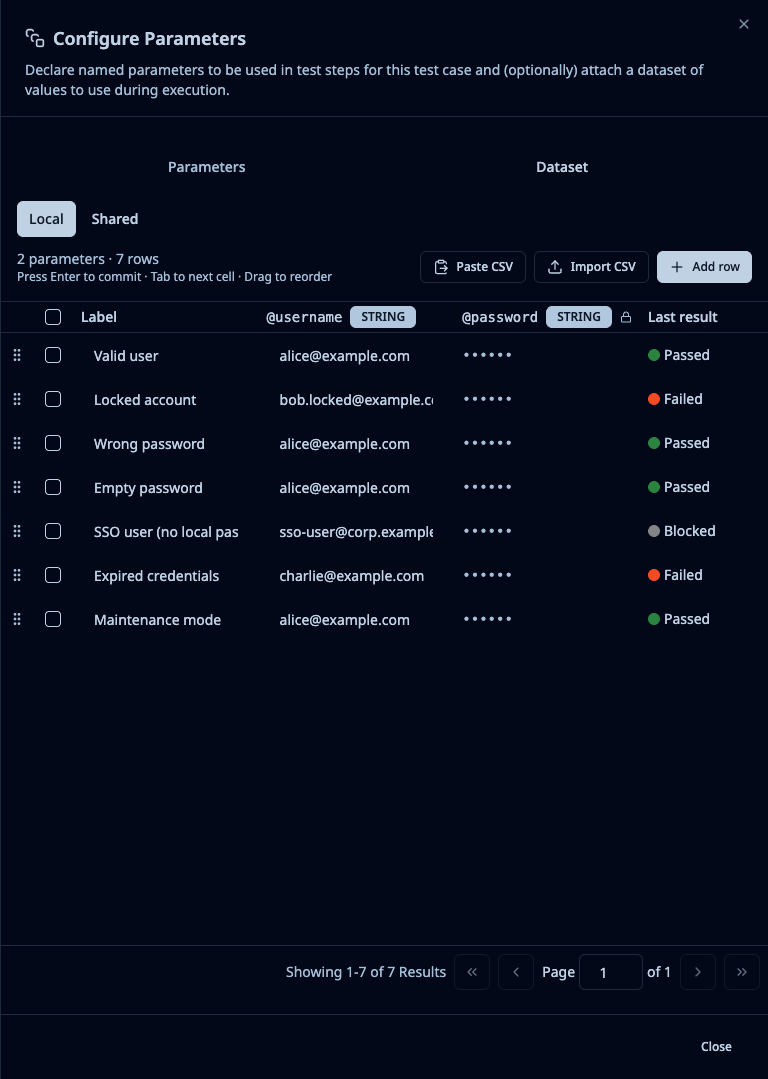
Open any test case and click Configure Parameters. Declare the named inputs your case needs — username, attempts, country_code, whatever the case uses. Drop the parameter names into your step text wherever you used to hard-code a value. Add a table of rows: one column per parameter, one row per scenario you want to cover.
When the case runs in a test run, every row becomes an iteration — a separate result line with its own status from your project's workflow, its own notes, its own evidence. A row labeled "Locked account" shows up as a discrete result. So does "SSO user." So does "Wrong password attempt #3." Open the case in the run and you see them stacked: which inputs passed, which failed, which still need testing.
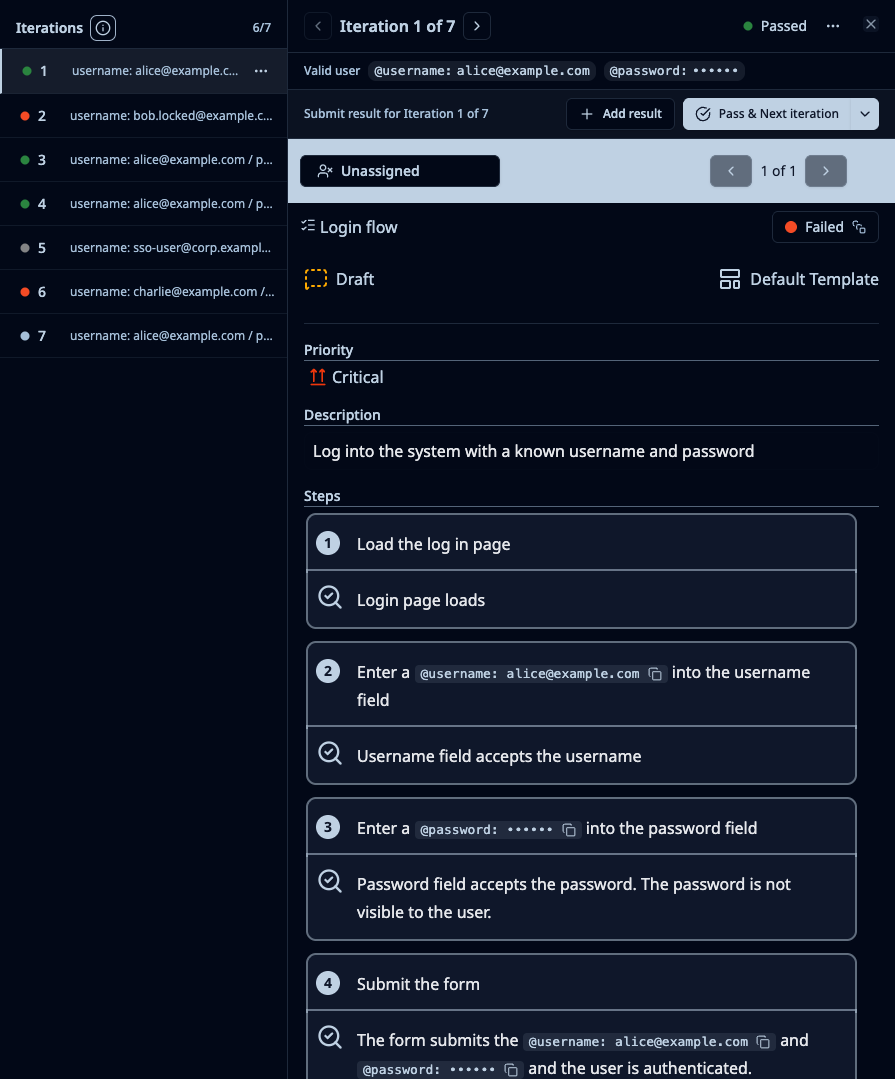
Maintenance collapses. Change the steps once, the iterations all pick up the change. Add a new input combination, it's one new row. Retire a scenario, delete a row.
Shared Datasets: The Network Effect
A lot of those input tables aren't unique to one case. Your list of supported browser/OS combinations gets used in five different flows. Your roster of test users gets reused everywhere. Your set of edge-case email addresses shows up in every signup-related case.
Shared datasets let you author that table once at the project level and assign it to every case that needs it. Each case maps the shared dataset's columns to whatever names it uses internally — same table, different parameter names, no duplication.
When the shared dataset is updated, every case picks it up on the next run. Need to add a new browser to the matrix? Edit one row, everything tested against it next sprint.
Datasets are also versioned. Every save creates an immutable snapshot, so a test run completed last quarter stays readable even after the dataset has been edited and republished. You can pin a case to a known dataset version when you're in the middle of a migration and don't want surprises.
The Iteration Matrix Report
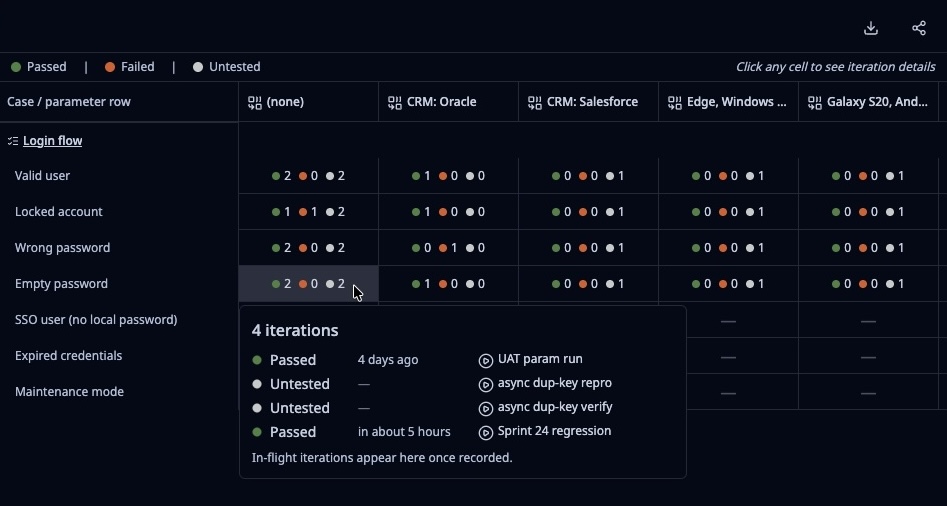
Per-row results unlock a kind of report you couldn't really build before: a matrix of cases × configurations × input rows, color-coded by status, all in one view.
Did Chrome on Windows pass every login scenario this regression? One look. Did the "Locked account" row fail across every browser? One look. Are there configurations you've never actually tested for a critical case? They show up empty.
The matrix is part of TestPlanIt's Report Builder. Drag it onto any report dashboard, point at the test runs you want to summarize, and export to CSV when you want to bring it into a meeting or attach it to a release sign-off.
CI Already Knows Which Row Failed
If you're running parameterized tests in JUnit, TestNG, xUnit, NUnit, or MSTest, your test framework already emits a property or attribute that says which row of the data provider this result belongs to. TestPlanIt reads that signal directly. Upload your JUnit XML from CI and each iteration lands in the right row of the right test case automatically — no scripts, no hand-mapping.
Different teams call this property different things — iteration, dataRow, iterationIndex, whatever your CI emitter uses. The project settings let you configure the names TestPlanIt should recognize. Out of the box it looks for the most common name; add yours if you've standardized on something else.
Linked Issues That Carry the Context
The single most annoying part of triaging a parameterized test failure used to be reproducing it. "Login failed" is not a bug report. "Login failed for user [REDACTED] on iteration 3 of 7, with these parameter values, in this test run" — that's a bug report.
When you link an issue from a failed iteration, TestPlanIt pre-fills the description with exactly that: the iteration's title, a table of parameter values for that row, and a deep link back to the iteration in TestPlanIt. Jira gets a real Jira table. GitHub gets a real markdown table. Azure DevOps gets a real HTML structured description. You edit before submit if you want; otherwise click Create and the ticket lands with everything the developer needs.
The description is translated to the issue-filer's preferred language, so a French QA engineer files a French description for the French developer who's about to read it.
Sensitive Values, Handled
Test data sometimes includes passwords, API tokens, payment card numbers, customer PII. We give you a Sensitive flag per parameter. Mark the column once and TestPlanIt masks the value as •••••• everywhere in the UI for users who don't have explicit permission to read it, and replaces it with [REDACTED] in CSV exports and pre-filled issue bodies.
There's no new permission to teach your team. The existing Test Case Restricted Fields and Test Run Result Restricted Fields role permissions you already use for masking other fields gate this too. Grant once at the role level and the right people see the right things across every surface.
For everyday "share-my-screen-in-a-meeting" privacy, this is exactly what you need. For real production secrets, fetch them at execution time from your secrets manager rather than embedding them in test data — same rule as always.
Where to Find It
The whole feature surface lives under one menu entry: Project Settings → Test Case Parameters. Shared datasets are managed there. CI iteration property names are configured there. Per-case parameters and inline owner-bound datasets are authored from inside each test case via Configure Parameters. Run results, the matrix report, and issue linking all light up automatically as soon as a case has parameters.
The full user guide is at Parameterized Test Cases.
Upgrade to v0.29.0
Pull the latest, install, generate, and build. Docker users can pull the latest image. Full upgrade notes are in the release notes.
Get Involved
- Star the repo on GitHub
- Follow @TestPlanItHQ for updates
- Join our Community Discord
- Report issues and suggest features on GitHub
Thank you for using TestPlanIt!