Parameterized Test Cases
Parameterized test cases let a single test case run multiple times in one test run, once per row of input data. Each run is an iteration and gets its own status. This is the right model for table-driven testing — login flows with different credentials, payment flows with different amounts, validation rules with positive + negative inputs — without duplicating the case for every combination.
This page covers the whole feature top to bottom: authoring, datasets, execution, reporting, CI imports, issue linking, settings, and permissions.
Spotting Parameterized Cases
Parameterized cases carry a stacked-squares badge next to their type icon wherever a case is rendered — the repository list, test run case lists, the case detail header, tag pages, the matrix grid, comment mentions, the selected-cases drawer, review queues, and report drill-downs. Hover the badge for the "Has parameterized steps" tooltip.
To find every parameterized case in a project at once, open the repository's left-panel view selector, choose Parameterization, and click the Parameterized row (or Not Parameterized for the inverse). Clicking a row adds a matching filter chip above the case table, and each option carries a live count of the cases it would return. The chip combines with any other filters already applied. See Repository.
Concepts
A parameter is a named typed input declared on a test case (e.g. username, attempts, isAdmin). Parameters are referenced inside step text using @param chips and resolve to values at run time.
An iteration is one execution of a parameterized case for one row of values. A case with three rows produces three iterations per test run. Iterations have their own per-row status (Passed / Failed / Blocked / etc.); the case-level status is the worst-of rollup across iterations.
A dataset is the table of input rows that drives iterations. Datasets come in two shapes:
- Owner-bound — created and edited inline on a single case. Lives with the case and is only used by that case.
- Shared — project-scoped, can be assigned to many cases. Each case maps the shared dataset's columns to its own parameter names.
Datasets are versioned: every save creates a new immutable version. A run captures a snapshot of the dataset version at the moment the run was created, so historical results stay readable even if the dataset is later edited or deleted.
Authoring a Parameterized Case
There are two entry points:
- Inline on Add Case — when you create a new case from the repository, a Configure parameters button appears above the Steps field in the Add Case form, in the same spot it lives on the case details page. The button shows on templates that include a Steps field (parameter
@chipreferences need a step to live in) and is hidden otherwise. Clicking opens a sheet from the right with a slimmed-down editor — parameter columns, dataset rows, type and required/sensitive flags. The button label updates toParameters (N)once columns are authored. When you save the case, its parameters, and its dataset rows all land in one atomic write. The full editor (CSV import, allowed-values authoring for SELECT, per-cell sensitive masking) is still available on the created case. - Full editor on an existing case — open the test case, then click Configure Parameters at the top of the case editor. The sheet that opens has two tabs:
Parameters tab
Declare the parameters your case needs. Each parameter has:
| Field | What it means |
|---|---|
| Name | The chip name you'll use in steps (e.g. username). Lowercase + numbers + underscore is conventional. |
| Type | STRING, INTEGER, BOOLEAN, or SELECT (see SELECT availability). Controls cell editing and per-row validation. |
| Default | Value to use when no row supplies one. |
| Required | When set, rows with no value for this parameter fail validation on save. |
| Sensitive | When set, values are masked as •••••• in the UI for users without the right role permission (see Permissions & Sensitive Values). |
SELECT parameter availability
SELECT parameters have two sources for their allowed values: an inline list typed into the dialog one-per-line, or a lookup dataset — another shared dataset whose first column is treated as the option list (useful when the same dropdown values are reused across many cases).
SELECT is offered when adding or editing a parameter through the Configure Parameters → Parameters tab on a test case (the owner-bound editing surface). It is intentionally not offered in the standalone Shared Dataset Editor's Add column dialog because a SELECT column needs a secondary list (allowed values or a lookup dataset) that doesn't fit a quick-add inline flow. If you need a SELECT-typed column on a shared dataset today, declare it on a case via Configure Parameters and assign the shared dataset to that case; the cell editor in the shared dataset grid recognizes the SELECT type and renders it as a dropdown driven by the configured options.
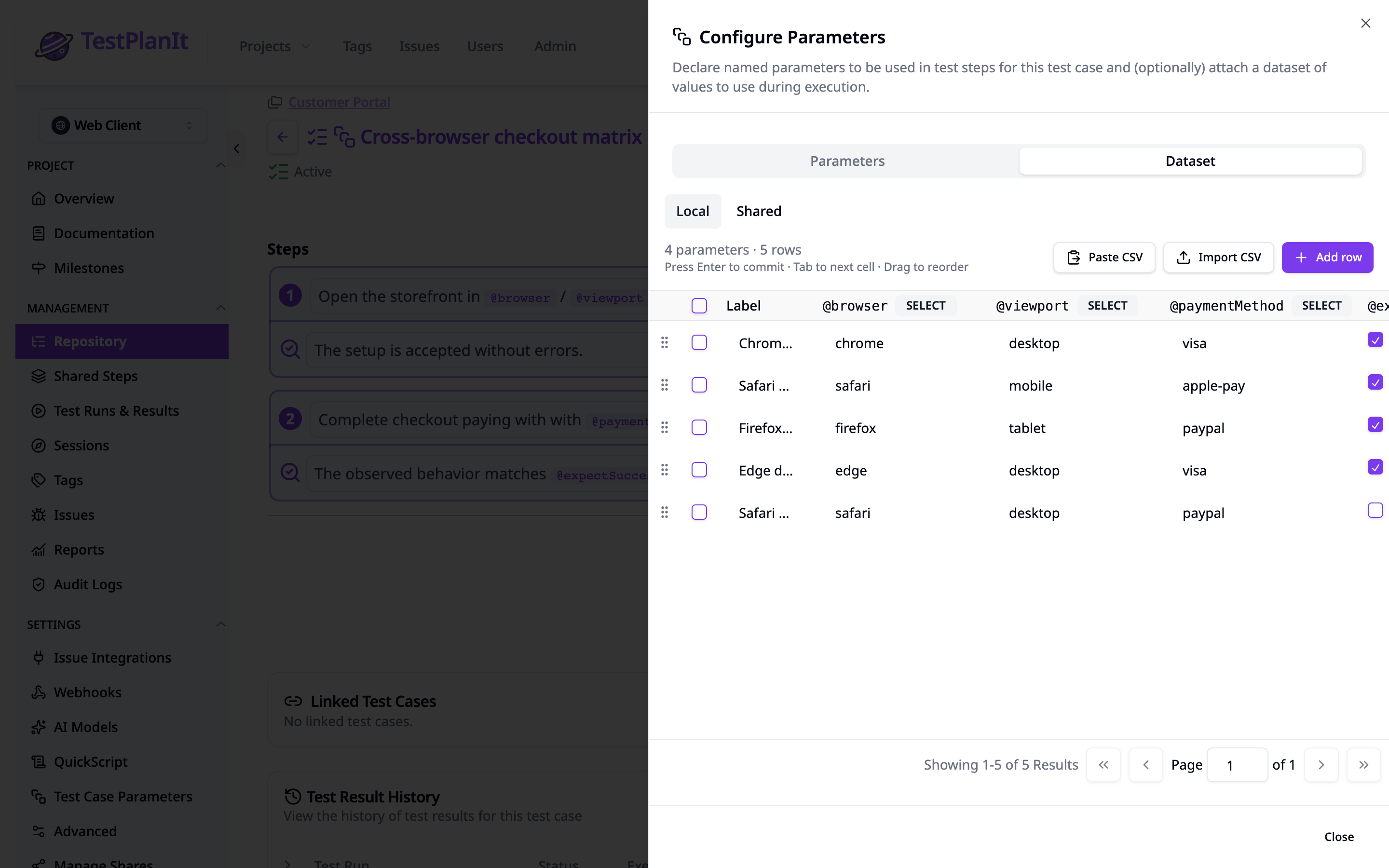
Dataset tab
Each row in this tab becomes one iteration when the case runs. The grid is a spreadsheet-style editor:
- Click a cell to edit it. Tab moves right; Enter moves down; Esc cancels.
BOOLEANcells are direct-toggle checkboxes — no edit mode.INTEGERcells reject non-numeric input on commit.- Required cells with no value show a red border and refuse the save.
- Sensitive cells render as
••••••; click to reveal (for permitted viewers) before editing. - The Label column is free-text — surfaces on the iteration row in execution so testers can scan the table at a glance ("Good username", "Empty password", etc.).
@param chips in step text
Inside any step or expected-result field, type @ to open the parameter picker, or click the Insert Parameter toolbar button. The inserted chip displays as @username and renders the iteration's value when the step is shown during execution. Sensitive parameter chips render as •••••• unless the viewer has the right permission.
A chip that references a parameter name not declared on the case shows a warning underline — fix it by either adding the parameter or removing the chip before saving the case.
Datasets
Owner-bound vs Shared
The toggle at the top of the Dataset tab switches between Local (owner-bound, edited inline on this case) and Shared (a project-scoped dataset assigned to this case). At any time a case has at most one of each: zero or one owner-bound dataset, zero or one shared-dataset assignment.
In Shared mode you don't edit the dataset rows directly here — you pick a shared dataset and map its columns to this case's parameter names. Click Manage shared dataset to open the assignment dialog.
Mapping columns to parameters
A shared dataset is just a named table; the column names in the dataset don't have to match the parameter names on the case. The mapping is a per-case translation: for each column you either point it at a parameter on the case, or mark it Skip to ignore it. The mapping is stored on the assignment and used at iteration-generation time.
Pinning a version
By default a case follows the current version of its shared dataset — every new save of the dataset becomes the source of truth for subsequent runs. Pin to a specific version when you want the case to stay on a known shape (e.g. while a wider migration is in flight). Test runs that have already snapshotted the dataset are unaffected either way.
The Standalone Shared Dataset Editor
Shared datasets get their own full-page editor under Project Settings → Test Case Parameters → Shared Datasets → Open editor. This is the surface you use to author the dataset itself, independent of any one case.
Column actions
Add column opens a dialog with Name + Type (STRING / INTEGER / BOOLEAN) + Required + Sensitive. The new column is appended to the right with empty values across every row.
Delete column is in the three-dot menu on each column header. The delete is blocked while any case maps a parameter to that column — the dialog lists the referencing cases as links so you can clear those mappings first. Newly-added unsaved columns skip the check (nothing can reference them yet).
Importing data
The Paste CSV button accepts a clipboard paste of comma- or tab-separated text and maps it to the existing columns by header. Import CSV opens the full wizard (file upload, column-mapping preview, validation report) and handles larger imports.
Versioning & save semantics
The editor edits a draft of the next version. Save is gated on dirty state (no changes → button is disabled). When you click Save:
- Per-cell validation runs (types, required, allowed values).
- A new immutable
DataSetVersionis written. - The dataset's
versioncounter is incremented. - Earlier versions remain available in the Version history picker for restore.
Sensitive cells
Sensitive parameter values render as •••••• for viewers without the Test Case Restricted Fields → Read Sensitive role permission. Permitted viewers see plaintext; clicking the masked cell reveals it before editing. See Permissions & Sensitive Values for the full model.
Iteration cap
A test case may not have more than 5000 iterations in a single run. The cap protects against runaway imports and oversized datasets. The editor will not save a dataset with more than 5000 rows, and the CI import path refuses the entire upload if any case requests an iteration index above the cap.
Iteration Execution
When a test run is created from a parameterized case, TestPlanIt generates one TestRunCaseIteration row per dataset row. Each iteration gets its own per-row status; the case row in the run summarises the worst-of status across iterations.
The iteration drill-down
Click a parameterized case row in the run to open the iteration drill-down. The drill-down shows:
- One row per iteration with the dataset row label and the value of each parameter (masked where sensitive).
- The iteration's current status, last result timestamp, and tester.
- Step preview — the case's steps rendered with this iteration's values substituted into the
@paramchips.
Recording a result
The Add Result form on the iteration row is the same form used for non-parameterized cases — same status picker, same notes editor, same step results, same screenshot attachment. The only difference is that the chips in the steps render with this iteration's values.
The Pass & Next iteration button is a convenience that records Pass on the current iteration and advances to the next one in the same run — useful for happy-path tables where most rows pass.
Worst-of rollup
The case-level status in the run rolls up from its iterations using these rules, in order:
- No iteration has a recorded result yet → the case shows the first untested status configured in the project (lowest
orderwhose flags are not success / not failure / not completed). - At least one iteration is in a failure status → the case shows the most-frequent failure status across iterations. Ties break to the failure status with the lowest
order. - No failures, at least one success → the case shows the most-frequent success status. Same tie-break.
- Some iterations recorded but none are success or failure → the case shows the most-frequent status among all recorded iterations. Same tie-break.
The algorithm only looks at the isSuccess / isFailure / isCompleted flags and the order field on each Status — status names are admin-defined and never consulted. So if your project defines "Blocked" as neither success nor failure (the default), it's treated like any other non-success / non-failure status in rule 4; it doesn't have a built-in tier of its own. Editing one iteration's status recomputes the rollup immediately.
Test Result History
Open the Test Result History panel on a case to see every result it has ever produced across all runs. For parameterized cases the table adds:
- An Iterations column with a stacked-squares icon indicating the result came from a specific iteration of a parameterized run.
- An expanded panel (click the row) that shows the Run details (configuration name + tester) and Parameter values for that iteration. Sensitive values are masked the same way they are in the run UI.
Iteration Matrix Report
The Parameterized Test Iteration Matrix is a built-in Report Builder preset that lays iteration results out in a 3-axis grid: case × configuration × parameter row. Each cell is colored by the iteration's worst-of status across the filtered runs.
Add the preset by clicking + Add Report → Parameterized Test Iteration Matrix inside any Report Builder. The matrix loads aggregated cells server-side and refuses requests over 10,000 cells (e.g. 200 cases × 50 configurations × 1 parameter row) — narrow the filters when the cap is hit.
The matrix supports CSV export. Sensitive cells in the export are written as [REDACTED] for users without the Test Run Result Restricted Fields → Read Sensitive role permission.
CI Imports
Most CI emitters can mark a test case as one row of a parameterized run by writing a property, attribute, or trait on the test result. TestPlanIt reads that signal and routes the result to the matching iteration row.
| Format | Where the iteration property lives |
|---|---|
| JUnit XML | <property name="iteration" value="N"/> child of <testcase> |
| TestNG XML | <attribute name="iteration">N</attribute> |
| xUnit XML | <traits><trait name="iteration" value="N"/></traits> |
| NUnit XML | <property name="iteration" value="N"/> |
| MSTest TRX | Any metadata map exposing the configured name |
The lookup name defaults to iteration (case-insensitive). To configure additional names — iterationIndex, dataRow, whatever your CI emits — open Project Settings → Test Case Parameters → Iteration Property Mapping and add the names there. Lookup is case-insensitive across the whole configured list.
Cap-exceeded refusal
When the imported file requests an iteration index above the 5000 cap, the entire import is refused with 422 and a list of every offending case. This is intentional — refusing the whole import means you fix every offender in one pass rather than fix-one, re-import, fail-on-the-next-one.
Behavior when no iteration property is present
A test case in a CI emitter without an iteration property routes to the case-level status exactly the way it did before this feature shipped — no behavior change for non-parameterized cases.
Reserving Dataset Rows for Automated Tests
CI Imports above cover pushing results back — routing each automated result to the right iteration. The complementary question is what happens at execution time: when several automated jobs run the same suite in parallel, they often draw from a shared pool of real fixtures (test accounts, sandbox records, seat licenses) where only one job may use a given row at a time. Nothing stops two parallel jobs from picking the same dataset row and colliding on the real thing that row describes.
The Test-Data Reservation API solves this. It turns a dataset into a reservation pool: a job acquires the next free row, uses its values to provision the real fixture, and releases the row when done — with a TTL so a crashed job never pins a row forever. It's the natural next step once your dataset exists — the machine-facing way to consume those rows safely from an automation harness.
This is deliberately separate from the in-app iteration playback described above: a test run snapshots its own copy of the dataset when the run is created, so runs never contend on the live rows. Reservation operates on the live dataset rows for external orchestration. See Test-Data Reservation for the endpoints, a CI reservation-loop example, and the webhook events.
Linking Issues from a Failed Iteration
When a parameterized iteration fails, you can link an external issue (Jira, GitHub, Azure DevOps) from inside the Add Result form: click Link provider Issue → Create New Issue. The dialog opens with the description pre-filled:
- Title —
Iteration N of M on <row label>. - Body — a rich-text section with:
- A prose lead identifying the iteration and dataset row.
- A
Parameter | Valuetable listing every parameter on the case. Sensitive parameter values render as[REDACTED]for users without the Test Run Result Restricted Fields → Read Sensitive role permission; everyone else sees plaintext. - A View iteration in TestPlanIt deep link (absolute URL using your
NEXTAUTH_URL) that opens straight to this iteration's drill-down.
Edit before submit
The prefill is a starting point — edit the description freely in the rich-text editor before clicking Create. Whatever's in the editor at submit time is what gets sent to the tracker. The three adapters render the TipTap doc natively (real Jira table, real GitHub markdown, real ADO HTML — not literal markdown pipes).
Localization
Title, prose lead, table headers, and the deep-link label are translated to the issuing user's locale (set in Account → Preferences). Parameter names and the row label are user-authored content and stay untranslated.
Deep link round-trip
Clicking the View iteration in TestPlanIt link in the tracker opens the iteration drill-down with the correct case and iteration preselected (the URL carries ?iteration=N&selectedCase=...).
Project Settings → Test Case Parameters
This is the project-scoped settings hub for the feature. It lives at Project Settings → Test Case Parameters and groups two surfaces:
Iteration Property Mapping
A small tag-input list of property/attribute/trait names the CI import path will look up on each test case to find the iteration index. Default behavior (empty list) recognizes iteration (case-insensitive). Add custom names if your CI uses a different vocabulary.
Shared Datasets
The CRUD list of shared datasets in this project. Columns: Name, Columns, Rows, Version, Last edited, Owner, In use by (the count of cases assigned to the dataset, clickable to drill into the list), Actions (Open editor / Delete). Delete is blocked by an active confirm if the dataset has assignments; the prompt surfaces the count.
Access to both surfaces:
- System Admin — unconditional.
- Project Admin — must be assigned to this specific project.
Permissions & Sensitive Values
Sensitive parameter values are gated by the existing Read Sensitive flag on two role permission areas — no new permission was introduced for this feature:
| Surface | Gate |
|---|---|
| Dataset rows on a case (Configure Parameters → Dataset tab, standalone editor) | Test Case Restricted Fields → canReadSensitive |
| Iteration cells in execution, matrix cells, matrix CSV export, issue-prefill body | Test Run Result Restricted Fields → canReadSensitive |
Without the relevant grant, sensitive values render as •••••• in the UI and [REDACTED] in the issue body and CSV exports. System admins bypass both gates. For the broader role permission model see the Roles guide and Permissions overview.
What "sensitive" actually means
Marking a parameter sensitive masks its value in the UI and redacts it in exports + issue bodies. It is not an encryption-at-rest guarantee, and a determined user with access to the browser's DOM inspector or the underlying database can still read the value. The tradeoff is intentional: cleartext in memory keeps the testing UX simple (editing, copy-paste, comparison) while masking covers the everyday over-the-shoulder and "share my screen in a meeting" cases. Treat the flag as a UX-level signal, not a secrets manager. For real secrets — production credentials, API keys, payment card data — fetch from a secrets store at test execution time rather than embedding them in dataset rows.