Advanced Search
TestPlanIt's Advanced Search feature provides a powerful, unified way to search across all your test management data. You can search for test cases, test runs, sessions, projects, issues, milestones, and shared steps - all from one interface.
Accessing Advanced Search
You can access the Advanced Search in two ways:
- Global Search - Click the search icon in the top navigation bar or use the keyboard shortcut
Cmd+K(Mac) orCtrl+K(Windows/Linux) - Context Search - Use the search bar on specific pages (e.g., Repository, Test Runs, Sessions) to search within that context
Search Interface
The search interface consists of several key components:

1. Search Input
- Enter your search query in the main input field
- Search begins automatically as you type (after a short delay)
- Click the X button to clear your search
2. Entity Type Selector
- Choose which types of content to search
- Select "All Types" or specific entity types:
- Repository Cases - Test cases in your repository
- Shared Steps - Reusable test step groups
- Test Runs - Test execution runs
- Sessions - Exploratory testing sessions
- Projects - Your projects
- Issues - Tracked issues
- Milestones - Project milestones
Each entity type has its own icon to help you quickly identify results at a glance.
3. Project Scope Toggle
- When in a project context, toggle "Current project only" to limit results to the current project
- Turn off to search across all projects you have access to
4. Advanced Filters
Click the filter icon to access advanced filtering options:
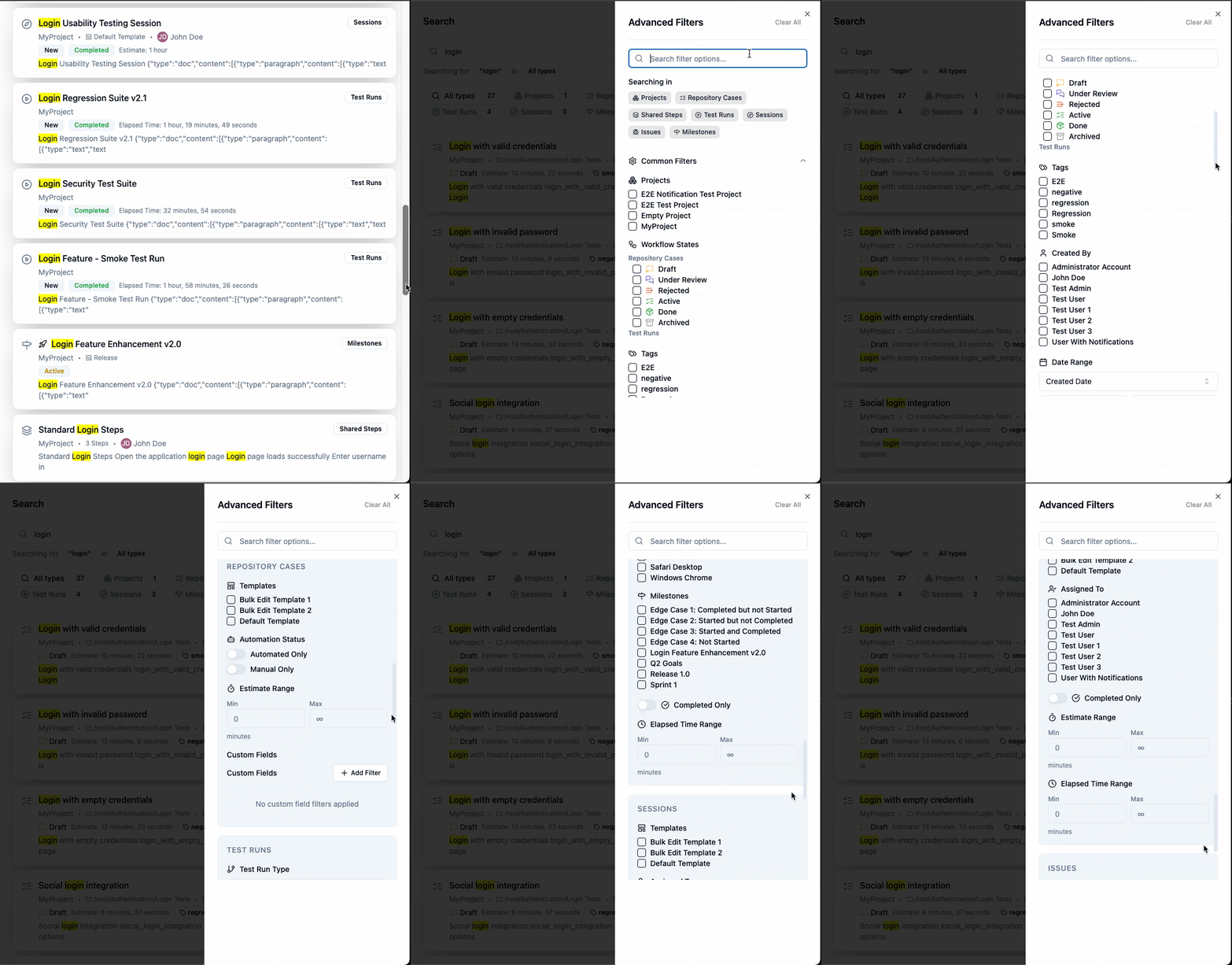
Common Filters
- Projects - Filter by specific projects
- States - Filter by workflow states (e.g., Draft, Ready, In Progress)
- Tags - Filter by tags
- Created By - Filter by the user who created the item
- Date Range - Filter by creation, update, or completion date
Entity-Specific Filters
Repository Cases:
- Folders - Filter by repository folder
- Templates - Filter by test case template
- Automation Status - Show only automated or manual tests
- Estimate Range - Filter by time estimates
- Custom Fields - Advanced filtering by custom field values with operators:
- Text fields: equals, not equals, contains, not contains, starts with, ends with
- Number fields: equals, greater than, less than, greater than or equal, less than or equal, between
- Select fields: in, not in
- All fields: exists, not exists
Test Runs:
- Test Run Type - Regular or JUnit imports
- Configurations - Filter by test configurations
- Milestones - Filter by associated milestones
- Completed - Show only completed runs
- Elapsed Time - Filter by execution time
- Custom Fields - Advanced filtering by custom field values (same operators as Repository Cases)
Sessions:
- Templates - Filter by session template
- Assigned To - Filter by assigned user
- Completed - Show only completed sessions
- Estimate/Elapsed Range - Filter by time estimates or actual time
Issues:
- Has External ID - Show only issues with external IDs
Milestones:
- Has Parent - Show only sub-milestones
- Due Date Range - Filter by due dates
- Completed - Show only completed milestones
Search Results
Result Display
Each search result shows:
- Icon - Visual indicator of the entity type
- Title - The name of the item (with search term highlighting)
- Entity Badge - Shows what type of item it is
- Metadata - Relevant information like project, state, creator, dates
- Highlights - Snippets showing where your search terms were found
Result Tabs
When searching multiple entity types, results are organized into tabs:
- All Types - Shows all results across all entity types
- Individual entity tabs - Shows results for each specific type with counts
Navigation
- Click on any result to navigate directly to that item
- Use pagination controls at the bottom for large result sets
- Results are sorted by relevance by default
Search Tips
Text Search
Search is performed across multiple fields including names, descriptions, and content. Search terms are highlighted in yellow in the results.
Advanced Search Operators
TestPlanIt supports powerful search operators that allow you to create precise queries:
Exact Phrase Matching
Use double quotes to search for an exact phrase:
"test scenario"
"user authentication flow"
This will only match documents containing those exact words in that exact order.
Required Terms (+)
Use the + prefix to require a term must be present:
+login +password
+api +authentication
Both terms must appear in the results.
Excluded Terms (-)
Use the - prefix to exclude documents containing a term:
testing -automated
login -forgot
This searches for "testing" but excludes any results containing "automated".
Wildcards
Use * for multiple character wildcards or ? for single character wildcards:
test*           # Matches: test, testing, tester, tests
te?t            # Matches: test, text
user*name       # Matches: username, user_name, userfullname
Boolean Operators
Use AND, OR, and NOT for complex logical queries:
login AND password
signin OR login
authentication NOT oauth
Grouping with Parentheses
Combine operators using parentheses for complex queries:
(login OR signin) AND password
(test OR check) AND -automated
Field-Specific Search
Search within specific fields using the field:value syntax:
name:dashboard
description:"api endpoint"
name:user* AND description:authentication
Available fields: name, title, description, searchableContent, className, note, mission, docs, externalId
Fuzzy Matching
Use ~ to allow for typos and variations:
test~           # Matches: test, rest, best (with typos)
authentication~ # Matches similar words with minor differences
Combining Operators
You can combine multiple operators for powerful searches:
+"test case" -automated name:login*
(api OR endpoint) +documentation -deprecated
"user login" AND (password OR oauth) -forgot
Search Operator Examples
Find exact phrase excluding automated tests:
"login flow" -automated
Find all test cases with "api" in the name:
name:api*
Find items with either "test" or "check" but must have "authentication":
(test OR check) +authentication
Find items starting with "user" but not "username":
user* -username
Find items in descriptions with typo tolerance:
description:athentication~
Common Search Scenarios
Finding all test cases for a specific feature:
- Select "Repository Cases" as the entity type
- Enter the feature name (e.g., "payment")
- Use folder filter if your tests are organized by feature
Tracking test execution progress:
- Select "Test Runs" as the entity type
- Filter by milestone or date range
- Use the "Completed" filter to see only finished runs
Finding all work assigned to you:
- Select "Sessions" as the entity type
- Use the "Assigned To" filter and select your name
- Toggle "Completed" filter to see only active work
Searching for specific issues:
- Select "Issues" as the entity type
- Enter the external ID or issue description
- Filter by project if needed
Filtering Best Practices
- Start broad, then narrow - Begin with a simple search, then apply filters to refine
- Use entity-specific searches - When looking for a specific type, select only that entity type
- Combine filters - Use multiple filters together for precise results
- Save common searches - If you frequently use the same search criteria, bookmark the URL
Keyboard Shortcuts
Cmd/Ctrl + K- Open global searchEscape- Close search or clear current searchEnter- Navigate to the first resultArrow keys- Navigate through results
Search Indexing
TestPlanIt uses Elasticsearch for fast, full-text search capabilities. Content is automatically indexed when:
- Creating new items
- Updating existing items
- Changing item states or properties
The search index includes:
- All text content (names, descriptions, notes)
- Rich text content (automatically extracted from formatted text)
- Metadata (projects, users, dates, states)
- Custom field values
- Tags and labels
Troubleshooting
No Results Found
- Check your spelling
- Try broader search terms
- Remove filters to see if they're too restrictive
- Ensure you have access to the content you're searching for
Search Performance
- Very broad searches may take longer
- Use entity type filters to improve performance
- Limit date ranges when possible
Missing Results
- Recently created items may take a moment to appear in search
- Deleted items are automatically removed from search results
- Archived test cases won't appear in search by default