Project Issues
This page, accessible from within a specific project's navigation menu (under "Issues"), displays all issues that are linked to entities (Test Cases, Sessions, Test Runs, or Results) within that particular project.
Overview
Unlike the global Issues List, this view is filtered to show only the issues relevant to the currently selected project. It helps in understanding which known issues might impact testing activities or are associated with test failures specifically within this project context.
This page is read-only — it lists issues that already exist. You do not add or link issues from here. Issues appear in this list once they are linked to a Test Case, Test Run, Result, or Session, when an inbound webhook imports them, or when a project administrator bulk-imports them from a linked external project. To add or link an issue (including with a Simple URL integration), open the relevant test artifact and use the Link Issue / Add controls in its Issues panel. See Issue Integrations for the full add/link flow.
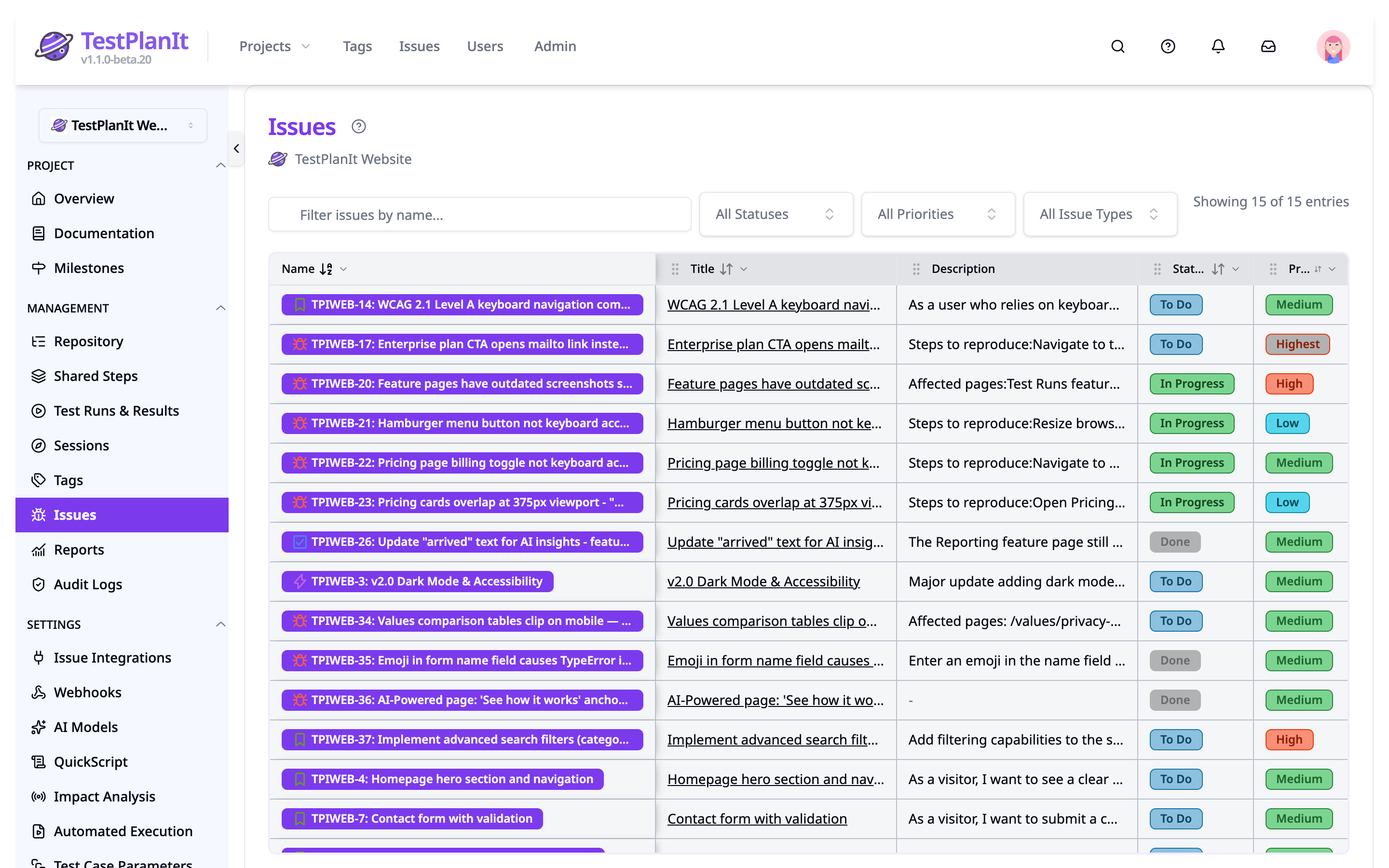
Features
Project Context Header
- The page header clearly indicates the current project context by displaying the project's icon and name.
Filtering and Searching
- Search Bar: Filters the displayed issues by their Name, Title, or Description. The search is case-insensitive and applies dynamically.
- Status, Priority, and Issue Type: Three multi-select dropdowns sit beside the search bar, each listing the values in use within this project. Selecting several values in one dropdown matches issues with any of them; selections in different dropdowns apply together. Leave a dropdown empty to include every value. Matching is case-insensitive, so values that differ only in capitalization are treated as one.
- No Issue Type: The Issue Type dropdown also offers a No Issue Type entry when some issues have no type set. Issues only receive a type when they are synced from or created in an external tracker, and not every tracker supplies one, so this entry lets you still find the rest.
- A dropdown is hidden when no issue in this project has a value for that field.
Loading More
- The list loads more issues automatically as you scroll toward the bottom — there are no page controls. A count above the table shows how many issues are currently loaded out of the total.
Sorting
- The table is initially sorted by Name in ascending order.
- Sorting by other columns might be available depending on the implementation.
Data Table Columns
The table structure is similar to the global Issues List but focuses on the context of the current project:
- Name:
- Displays the issue's unique name and its external ID (if available).
- Clicking the issue name likely navigates to a detailed view (TBD).
- Test Cases:
- Shows a count of repository test cases within this project linked to the issue.
- Clicking the count opens a modal listing these specific test cases.
- Test Runs:
- Shows a count of test runs within this project (directly or via results) linked to the issue.
- Clicking the count opens a modal listing these specific test runs.
- Sessions:
- Shows a count of test sessions within this project (directly or via results) linked to the issue.
- Clicking the count opens a modal listing these specific sessions.
- Milestones:
- Shows a count of the milestones within this project that the issue belongs to.
- Clicking the count opens a popover that lists those milestones, each shown with its milestone type icon and, for synced milestones, a Jira source badge.
(Note: The "Projects" column from the global list is not present here, as the view is already scoped to a single project).