Project Overview Page
This page serves as the main dashboard for a specific project, providing a high-level summary of its status and recent activity. You typically arrive here after clicking on a project card from the Projects List or the Dashboard.
The top of the page displays the project's icon, name, current status (Active/Completed), and the creation/completion dates.
Below this header information, the page content is organized into several summary sections, often displayed in two columns on wider screens. The sections in the right column collapse and expand from their headers, and the browser remembers which ones you left open.
Each section header carries its own "see all" link on the right, which opens the full page for that section.
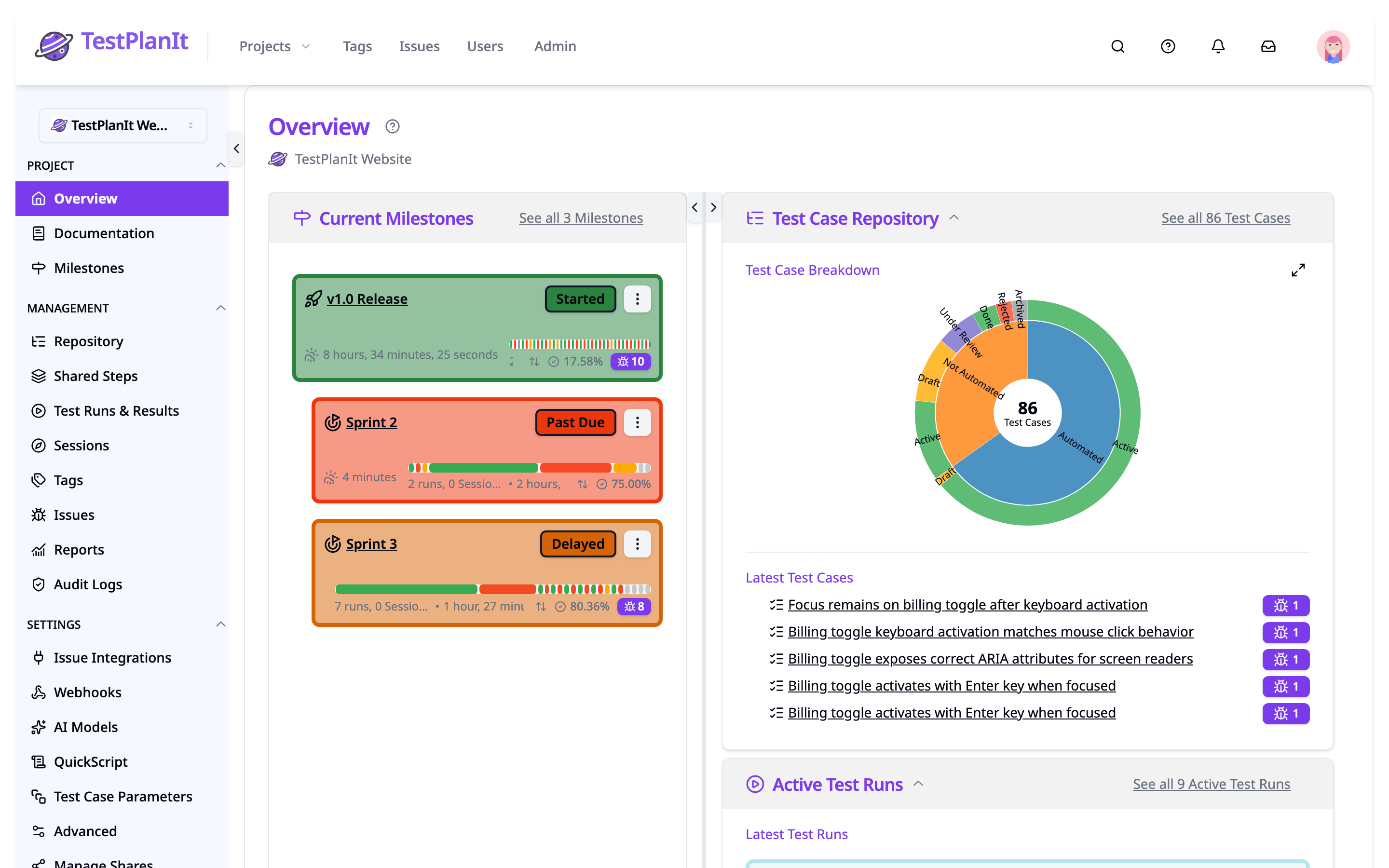
Current Milestones
(Icon: Milestone)
- Displays a list of milestones for this project that are currently active (not completed or deleted).
- Milestones are ordered primarily by start date, then completion date.
- Includes a link "See all [count] Milestones" which navigates to the main Milestones page for this project (
/projects/milestones/[projectId]).
Test Case Repository
(Icon: ListTree)
- Displays a Test Case Breakdown chart splitting the project's active cases by automation status and then by workflow state. Hovering a segment shows its name and case count, and the expand button beside the heading opens the chart in a larger dialog. Click a segment to open the Test Case Repository filtered to exactly those cases: an automation segment filters by automation status and switches View By to automation, and a workflow state segment adds that state and switches View By to workflow state. Cases with no workflow state have no filter to match them, so their segment does not link.
- Alongside the chart, Latest Test Cases lists the latest 5 active (not deleted or archived) Test Cases added to this project's repository.
- Each case name links to its details page within the repository (
/projects/repository/[projectId]/[caseId]), and any issues linked to the case appear in their own column to the right of the name. - Includes a link "See all [count] Test Cases" which navigates to the main Test Case Repository page for this project (
/projects/repository/[projectId]).
Active Test Runs
(Icon: PlayCircle)
- Displays the latest 5 active (not deleted or completed) Test Runs for this project.
- Each run shows:
- Its name (linked to the run execution page
/projects/runs/[projectId]/[runId]). - The date it was created.
- A summary bar showing the status counts (e.g., Passed, Failed, Blocked, Untested) of the test cases within that run.
- Its name (linked to the run execution page
- Includes a link "See all [count] Active Test Runs" which navigates to the main Test Runs page for this project (
/projects/runs/[projectId]).
Active Sessions
(Icon: Compass)
- Displays the latest 5 active (not deleted or completed) Test Sessions for this project.
- Each session shows:
- Its name (linked to the session execution page
/projects/sessions/[projectId]/[sessionId]). - The date it was created.
- A summary bar showing the outcome counts (e.g., Passed, Failed, Blocked, In Progress) for that session.
- Its name (linked to the session execution page
- Includes a link "See all [count] Active Sessions" which navigates to the main Sessions page for this project (
/projects/sessions/[projectId]).
Tags
(Icon: TagsIcon)
- Displays a Tag Cloud visualizing the tags used within the active Test Cases of this specific project.
- The size of each tag name corresponds to its frequency of use within the project's active cases.
- Tag names might be truncated for display.
- Includes a link "See all [count] Tags" which navigates to the project-specific Tags page (
/projects/tags/[projectId]).