TestPlanIt 1.1: Requirements, Impact Analysis, and Automated Execution

Today we're releasing TestPlanIt v1.1.0.
Every release raises the same three questions: Is it covered? What do we need to retest? Can we prove it? 1.1 is built to answer them. Requirements management, our most-requested feature, ties every test to what it verifies. Impact analysis narrows a regression run to what actually changed, and automated execution runs that shortlist from the run itself, so a code change gets an answer in minutes instead of a full regression cycle. And a set of smaller additions removes friction your team feels every day.
Know What's Covered — and Prove It
Requirements management gives your project a single tree of what the system should do, with every test case linked to the requirement it verifies. The tree fills itself from Jira, Azure DevOps, GitLab, Redmine, MantisBT, GitHub, or Gitea, so nobody re-enters what product management already wrote, and results roll up through the hierarchy so "is this feature covered?" is a glance instead of a spreadsheet.
The payoff compounds over a release:
- When a requirement changes, you know which tests to rerun. Suspect flags mark every affected link the moment the content changes, and clear themselves when the test runs again.
- Coverage debt is visible before it bites. The Coverage Gaps report ranks the requirements with no tests, or tests that never ran, and generates test cases straight from a gap.
- Sign-off has evidence. Traceability snapshots freeze the matrix at a point in time, and the Coverage Changes report shows exactly what moved between two of them. Auditors get a record, not a screenshot.
Requirements are opt-in per project. See Requirements to set it up and Coverage & Traceability for reports, snapshots, and suspect flags.
Test What Changed, Not Everything
A full regression pass on every build is the tax teams pay for not knowing what a change touched. Impact Analysis pays it down: point TestPlanIt at the repository of the application under test, pick two commits or a pull request, and get the Affected Tests right where you compose the run. It works from the git diff alone, with no coverage agent, no build step, and no instrumentation, so it runs against the first application you connect.
Every selection explains itself, with a pin from the test to the code, a keyword match, a prior run that covered the same change, or an AI ranking against the diff, so the team can trust the shortlist and add to it with confidence.
A project can connect several repositories, each with its own cache, Code Pins, and ticket scans. Path patterns decide which files Impact reads, and an Exclude row keeps noisy files out of an analysis, so a changelog or version file that changes in every pull request stops pulling in unrelated test cases. See Test Impact Analysis and the project settings to connect your first repository.
Execute Automation Scripts From Test Runs
Impact Analysis tells you which tests to run. 1.1 runs them. A test run used to be where automated results ended up; now it is also where they start. Compose the run from the Affected Tests, click Execute automated cases, and the automated portion of the run executes in your CI while testers pick up the manual cases. A single automated case gets Execute automated test for the same thing in miniature.
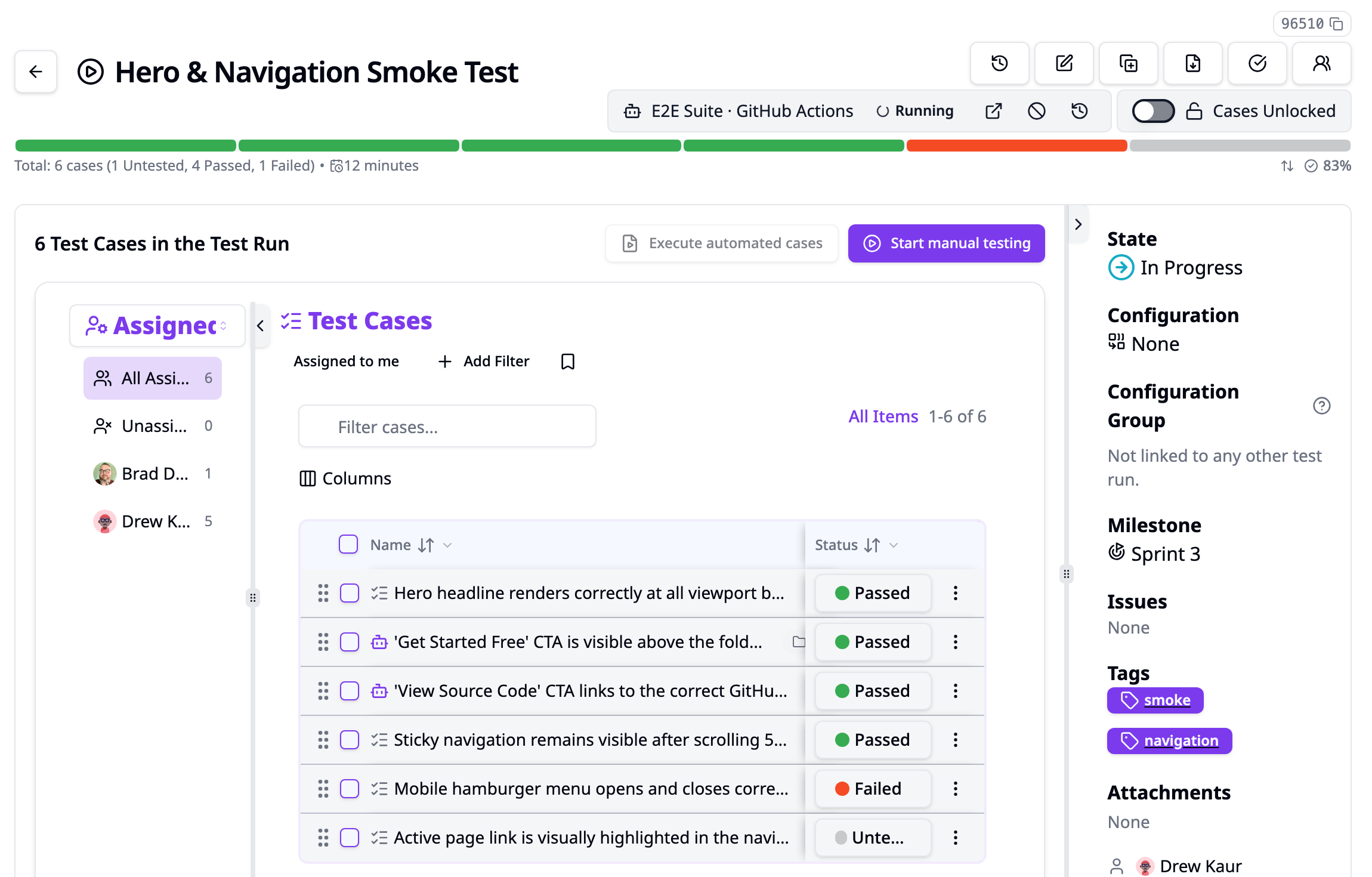
TestPlanIt starts the job on an execution target the project configured — a GitHub Actions workflow, a GitLab CI pipeline, or a signed webhook for anything else — and hands it two things: the run id, and a URL where the job can fetch the plan of cases to execute. The job runs the matching tests and reports back with the reporter or CLI you already use, pinned to that run. Every result updates its case in the run, so a run that mixes manual and automated cases stays one checklist with one status per case. Testers can still execute any case by hand, and the newest result wins.
Admins can add parameters to a target, like the browsers, operating system, or environment to test against, and whoever executes the run picks from them. Each choice reaches the job as an input, so one workflow covers every combination.
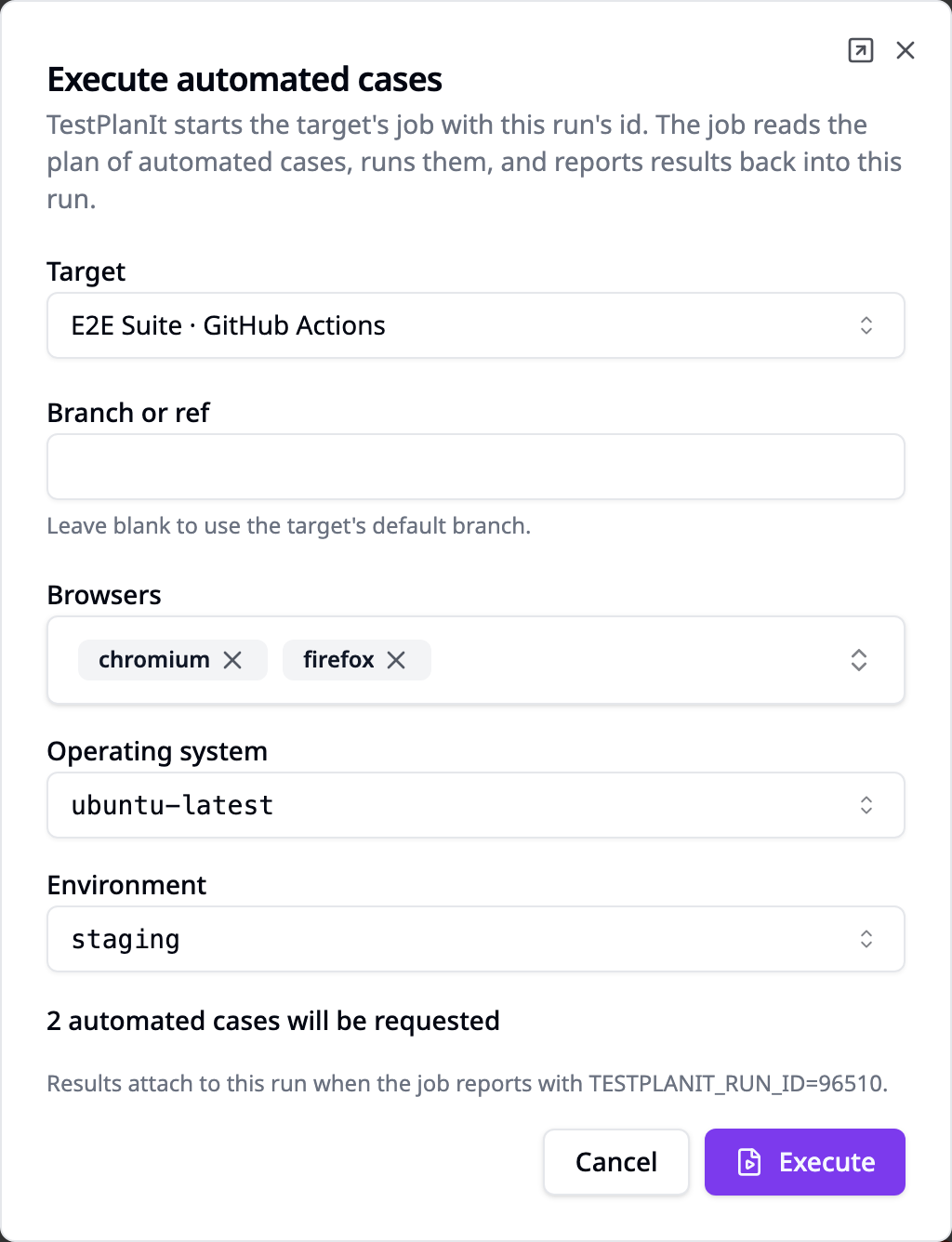
There is no agent to install and nothing framework-specific inside TestPlanIt. The plan lists each case with the identifiers a runner filter can match on; a short script in your repository turns them into a --grep, -k or --tests expression. Two examples ship with the docs.
We chose this shape deliberately. Tools that launch automation from test management usually either install an agent on your machines or send a list of test ids to CI. Agents are a second product to operate. Test-id lists hit CI limits fast — GitHub caps a dispatch at 25 inputs and 65 KB. TestPlanIt sends a pointer instead, and lets the job pull as many cases as the run holds.
See Automated Execution to set up a target and Hybrid Test Runs for how mixed runs behave.
Let the Repository Start the Run
Impact Analysis and automated execution don't have to wait for someone to click. Add a repository webhook and the repository starts the analysis itself: opening a pull request analyzes it against its target branch, and a push to the base branch analyzes the pushed commits. Each analysis becomes a test run holding the pinned and affected tests, named after the pull request or commit range and linked back to it. A run that came from a merged pull request names that pull request, not just two commit hashes. Set a minimum score on the webhook to take every test the analysis ranks at least that high instead.
Turn on Execute automated cases for the webhook, and each run's automated cases go to your execution target as soon as the run exists. Manual cases wait in the same run for testers. A pull request opens, and the tests it affects are already running. See Repository Webhooks and Executing automated cases.
Never Lose a Test Case Again
A closed tab, an expired session, or a browser crash no longer costs you the test case you were writing. TestPlanIt keeps your edits as you type and offers them back the next time you open the case, whether you were creating a new one or editing an existing one. Drafts stay private to you and never touch the published case until you click Save. See Auto-Save and Draft Recovery.
One Instance, Every Directory
Organizations rarely have one identity provider. 1.1 lets Okta manage your employees and Entra manage your contractors on the same TestPlanIt instance, with each directory owning its own users and neither able to overwrite the other. Rotate a SCIM token without a provisioning outage, hold contractors at the right access tier even when a coarse group would grant more, and scope a group to the projects it works on instead of the whole instance. See SCIM Provisioning and Groups.
DeepSeek, First Class
DeepSeek is now a first-class provider. You could already reach it through the generic OpenAI-compatible endpoint; 1.1 gives it its own integration with model selection, thinking mode, and cost defaults set up for you, so connecting it is one step instead of a workaround. See LLM Integrations.
Link Tickets Without the Busywork
A ticket key like PROJ-123 is now all it takes to link an issue, whether the request comes from a CSV import, the API, or an AI agent working through the MCP server. Nobody has to open the ticket in TestPlanIt first. Migrating an existing repository with thousands of ticket references becomes a single import. See Linking Issues on Import and the MCP Server documentation.
Map a CSV Once
Teams that import the same export every week used to re-map the same columns every week. Now you save the column mapping once, with its delimiter, encoding, and row mode, and apply it on the next import. When a file has the same columns as a saved mapping, the wizard suggests it, and one click maps every column. If the file has changed, the wizard tells you which saved columns it couldn't apply.
Share a mapping, and everyone importing with the same template can use it, in every project that uses that template. Saved mappings work in the Test Cases, Shared Steps, and dataset imports. See Saved Column Mappings.
Save Reports, and Freeze the Numbers
The report you build to answer this week's question is usually the one you need next week too. Save any report, pre-built or custom, under a name and a description, and open it again from Saved Reports at the top of the Reports page. Saved reports are private to you. A live one reopens with every setting restored and runs against current data.
Dates move with it. Pick Last week or This month from the date picker, or the new Last N days, weeks or months, and a live saved report or share link keeps that meaning: open it next Monday and it covers next Monday's last week, worked out in the timezone of whoever saved it, with the viewer stating the dates it is currently reporting. When the dates matter more than the window, choose Fixed dates when you save or share, or pick them on the calendar.
Some numbers must not move. A report shared at release sign-off should show what the team signed off on, not what the data says a month later. Saved reports and share links can now be frozen: TestPlanIt captures the results when you save or share, and every open shows exactly those numbers with when they were captured and by whom, in every access mode, including public and password-protected links. Live stays the default, and share lists show which links are live and which are frozen.
See Saved Reports and Live and Frozen Data.
And More
- Impact reports. Impact Analysis History and Code Pin Coverage show what each analysis selected and which code your pins cover.
- Report Builder totals. Group rows total their children, and a Show total line option sums the plotted series over time. Every pre-built report now filters from one multi-select Filters menu.
- Everything deleted is in Trash. Administration → Trash lists every kind of soft-deleted record, ready to restore or purge.
- See who can reach a project. A read-only Access page under Project Settings lists every user who can open the project and the role that applies to them.
- Details in a new window. A profile preference opens test cases, review items, and requirements on their own page instead of the docked panel.
- A better MCP server. Rich text comes back as Markdown, so an agent's edit survives the round trip, and results can be recorded per iteration of a data-driven case.
- Easier self-hosting. S3 storage can authenticate through the AWS default credential chain (an instance role or IRSA, no keys in your config), and
WORKER_MAX_MEMORY_RESTARTandWORKER_MAX_OLD_SPACE_MBraise worker memory limits on busy installs.
Upgrading
Back up your database before upgrading. Migrations apply automatically on container start, or with pnpm db:deploy on a source install. See the upgrade notes.
- Bundled file storage moves from MinIO to RustFS. MinIO no longer publishes Docker images, so the storage bundled with Docker Compose and the Helm chart now runs RustFS, an open-source S3-compatible server. A migration script copies your files across and leaves the old directory untouched as a backup. Follow Migrating from MinIO when you upgrade. Installs that use AWS S3 or their own S3 service are not affected.
- Project Settings permission now makes a project admin. A role with Add/Edit on Project Settings makes its holders project admins of every project where it applies, and the role name "Project Admin" no longer carries special meaning. Review your custom roles before upgrading. See Project admins.
- Reindex search. Once the new version is running, run a reindex from Administration → Search Engine so requirement data on existing issues is indexed and searchable.
Thank You
To everyone who filed an issue, opened a pull request, translated a locale, or told a colleague about TestPlanIt: this release is yours too.
- Star the repo on GitHub
- Follow @TestPlanItHQ for updates
- Join our Community Discord
- Report issues and suggest features on GitHub