Import & Export
TestPlanIt provides comprehensive import and export capabilities to help you migrate data, integrate with other tools, and backup your test management data.
Overview
The import/export system supports:
- CSV Import/Export for test cases and bulk data operations
- Markdown Import for importing test cases from
.mdfiles (with optional AI-assisted parsing) - Markdown support for rich text fields during CSV import and export
- Automated Test Results Import for multiple formats (JUnit, TestNG, NUnit, xUnit, MSTest, Mocha, Cucumber)
- Field Mapping for flexible data transformation with auto-matching
- Bulk Operations for efficient data management
- Attachment Support during import/export processes
CSV Import/Export
Test Case CSV Import
Import test cases from CSV files with flexible field mapping.
Accessing CSV Import
There are two ways to start a CSV import:
Using the Import button:
- Navigate to Repository in your project
- Click the Import button in the toolbar
Using drag and drop:
- Drag a
.csvfile from your desktop over the Repository page - A full-page drop overlay will appear indicating you can drop to import
- Drop the file — the import wizard opens automatically with your file pre-loaded
CSV Format Requirements
Your CSV file can use any column names - you'll map them to TestPlanIt fields during import. The only requirement is that your CSV has a header row.
Available Fields for Mapping:
The fields available for mapping depend on the template you select. You'll always have access to system fields, plus any custom fields defined in the template.
System Fields (always available):
| Field | Required | Description |
|---|---|---|
| Name | Yes | Test case name/title |
| Steps | No | Test steps (formatted) |
| Tags | No | Comma-separated tags |
| Automated | No | Whether the test is automated (checkbox) |
| Estimate | No | Time estimate in minutes |
| Forecast | No | Forecasted time in minutes |
| Attachments | No | File attachments |
| Issues | No | Linked issues, by issue name or tracker key |
| Linked Cases | No | Related test cases |
| Workflow State | No | Current workflow state |
| Created At | No | Creation date/time |
| Created By | No | User who created the case |
| Version | No | Version number |
| Test Runs | No | Associated test runs |
| ID | No | Test case ID |
| Folder | Conditional | Required when importing to multiple folders |
Template Custom Fields:
Any custom fields defined in the selected template will also be available for mapping. For example, if your template includes fields like "Priority", "Severity", "Preconditions", or "Expected Result", these will appear in the mapping options.
Example CSV Format
Your CSV might look like this (column names are flexible):
Test Name,Details,Procedure,Labels,Priority,Automated
"Login Test","Test user login functionality","1. Navigate to login page\n2. Enter credentials\n3. Click login","smoke,login",High,false
"Password Reset","Test password reset flow","1. Click forgot password\n2. Enter email\n3. Check email","email,security",Medium,false
During import, you'll map these columns to the available fields. The wizard auto-matches columns when names are similar.
Rich Text Content in CSV
Rich text fields (such as Description and other "Text Long" fields) support multiple formats in CSV. During import, TestPlanIt automatically detects the format and converts it to rich text:
- TipTap JSON: The native rich text format used internally. Imported as-is.
- HTML: HTML markup is detected and converted to rich text.
- Markdown: Markdown syntax (headings, bold, italic, lists, links, code blocks, etc.) is automatically detected and converted to rich text.
- Plain text: Simple text is wrapped in a paragraph.
Format detection happens automatically — you don't need to specify which format your CSV uses. This means you can export from TestPlanIt in Markdown format and re-import the CSV without any manual conversion.
Step Format in CSV
There are two ways to import test steps from a CSV: single row per case (all steps in one cell, separated by markers) or multiple rows per case (one step per row). You choose between them with the "Test Case Rows" toggle on the first wizard page.
Single Row per Case
Test steps in a single cell can be formatted in several ways:
Simple Format:
1. Step one
2. Step two
3. Step three
Detailed Format with Expected Results — separate the step from its expected result with a pipe (|):
1. Navigate to login page | Login page displays
2. Enter username and password | Fields accept input
3. Click login button | User is redirected to dashboard
Markdown Format:
Steps can also contain markdown formatting:
1. Navigate to the **Login** page | Login page displays with _username_ and _password_ fields
2. Enter `admin` credentials | Fields accept input
3. Click **Submit** | User is redirected to [Dashboard](/dashboard)
JSON Format — round-trips losslessly from a TestPlanIt single-row export:
[{"step":{"type":"doc","content":[...]},"expectedResult":{"type":"doc","content":[...]}}]
Separate Expected Result column — if your file keeps the expected result in its own column, map that column to Expected Result on the mapping page. The Steps cell is then imported as a single step, however many lines it spans, with that column as its expected result. Cells in the JSON or labeled export formats keep the expected results they already contain.
JSON payloads — a Steps or Expected Result cell that holds a JSON value (a request body, an API response) is imported as a single step, verbatim, with its indentation kept. It is not split into one step per line and not read as Markdown.
Multiple Rows per Case (Multi-Row Mode)
Choose "Test cases can span multiple rows" on the first wizard page to import CSVs where one test case spans several rows — one row per step. This is the shape TestPlanIt's own multi-row export emits, and it matches the format used by many third-party tools.
Required columns (header names matched case-insensitively):
| Purpose | Recognized headers |
|---|---|
| Step content | Step Content, Step, Steps, Action, Actions, Step Description |
| Expected result (optional) | Expected Result, Expected Results, Expected, Expected Outcome |
| Step number (optional) | Step #, Step Number, Step No, Step Order |
If your CSV uses a different header for step content, map that column to the Steps system field on the mapping page — that mapping always takes precedence over the alias list.
Row-grouping rules:
- You must map either an ID column or a Name column. Rows are grouped into a single test case by matching values in that column.
- A row continues the previous case if its ID/Name matches the previous row, or if its ID/Name cells are blank. This matches the common pattern of filling the case columns only on the first row of each test case.
- A row with a different non-empty ID or Name starts a new test case.
Example — same ID across all steps:
ID,Name,Step #,Step Content,Expected Result
1,Login flow,1,Open the login page,Form is rendered
1,Login flow,2,Enter credentials,Submit button enables
1,Login flow,3,Click submit,User lands on dashboard
2,Logout flow,1,Click the user menu,Menu opens
2,Logout flow,2,Click logout,User is signed out
Example — case columns only on the first row:
ID,Name,Step #,Step Content,Expected Result
1,Login flow,1,Open the login page,Form is rendered
,,2,Enter credentials,Submit button enables
,,3,Click submit,User lands on dashboard
2,Logout flow,1,Click the user menu,Menu opens
,,2,Click logout,User is signed out
Both produce two test cases with three and two steps respectively.
The preview page tells you how many CSV rows were grouped into how many test cases, and warns when multi-row mode is on but grouping didn't happen — for example because no step column was detected or no ID/Name column was mapped.
Import Process
-
Upload CSV File
- Click "Choose File" or drag CSV file
- File is validated for format and size
-
Field Mapping
- Map CSV columns to TestPlanIt fields
- Columns are auto-matched to fields by name when possible
- You can change or ignore any auto-matched field mapping
- Apply a saved column mapping, or save the current one
- Preview shows sample data mapping
- Rich text fields show a formatted preview (rendered markdown/HTML)
-
Options Configuration
- Choose a destination folder (or import to multiple folders and let the wizard auto-create the hierarchy)
- Select a template to apply
- Choose single-row or multi-row mode (CSV only)
-
Import Execution
- Review import summary
- Start import process
- Monitor progress with real-time updates
-
Results Review
- View import statistics
- Review any errors or warnings
- Access imported test cases
Linking Issues on Import
The Issues column accepts a comma-separated list of issue names or tracker
keys, such as PROJ-123.
A value that matches an existing issue in the project links to it. A value that does not is looked up as a key in the project's issue-tracker integration, and the issue is created in TestPlanIt when the tracker returns it — no one has to open the ticket in TestPlanIt first. Keys are looked up once per import no matter how many rows cite them.
The column links defects. A key that resolves to a requirement is reported rather than linked; link requirements from the requirements pages instead.
Values that match nothing are listed after the import finishes, alongside the row and test case they came from. The test cases still import.
Field Mapping Options
System Fields:
- Name (required), Steps, Tags, Automated
- Estimate, Forecast, Attachments, Issues
- Linked Cases, Workflow State, ID
- Folder (when using multi-folder import)
Template Custom Fields:
- All custom fields from the selected template are available
- Type conversion happens automatically based on the field type (text, number, date, checkbox, select, etc.)
Special Handling:
- Folders: Auto-create folder hierarchy based on the folder split mode (see below)
- Tags: Comma-separated values are split into individual tags; existing tags are reused, new ones are created
- Auto-matching: Column names are automatically matched to similar field names; you can override any auto-match
- ID column: If you map an
IDcolumn and a value matches an existing test case, that case is updated in place. Without a matching ID, a new case is created.
Saved Column Mappings
If you import files with the same columns regularly, save the mapping once and apply it on later imports. Saved mappings work the same way in the Test Cases, Shared Steps, and dataset CSV import wizards. Each wizard lists only its own mappings.
Saving a mapping. On the mapping page, open Saved mappings and choose Save mapping. Give it a name and, optionally, a description. A saved mapping stores:
- each CSV column name and the field it maps to, including columns set to Ignore Column
- the delimiter, header row, and encoding settings
- single-row or multi-row mode
- the template (Test Cases only)
A saved mapping is private to you and available in every project. Select Share with others to share it:
- A shared Test Cases mapping is available in every project that uses its template.
- A shared Shared Steps or dataset mapping is available to everyone.
Only you and administrators can edit or delete a mapping you shared.
Applying a mapping. When a saved mapping covers the file's columns, the mapping page suggests it. Select Apply in the suggestion, or pick any mapping from the Saved mappings menu. Applying a mapping:
- sets every column in the file that the saved mapping names
- leaves the file's other columns on their auto-matched field
- switches to the saved template, and re-reads the file if the saved delimiter, header row, or encoding differs from the current settings
- lists saved columns that are not in the file, and saved fields that the current template doesn't have, which are left on Ignore Column
Test-case fields are matched by field, not by template, so a mapping saved with one template also works with any other template that has the same fields.
Managing mappings. In the Saved mappings menu, use the icons next to one of your mappings to update it with the current mapping and settings, edit its name, description, and sharing, or delete it. Mappings shared by others are listed under Shared by others.
Multi-Folder Import and Folder Split Modes
When you choose "Add all cases and folders to a root folder" or "Add all cases and folders to the top level" on the first wizard page, you also need to map one CSV column to the Folder field. The wizard can then auto-create a folder hierarchy from the folder path values, controlled by the Folder Hierarchy Mode option:
| Mode | Behavior | Example input | Resulting folder tree |
|---|---|---|---|
| Plain text | No splitting; the whole value is one folder name | This/is.a>Folder | This/is.a>Folder |
| Split by slash | / separates nested folders | This/is.a>Folder | This → is.a>Folder |
| Split by dot | . separates nested folders | This/is.a>Folder | This/is → a>Folder |
| Split by greater than | > separates nested folders | This/is.a>Folder | This/is.a → Folder |
Folders are reused if they already exist at the same parent; otherwise they're created.
CSV Export
Export test cases and related data to CSV format.
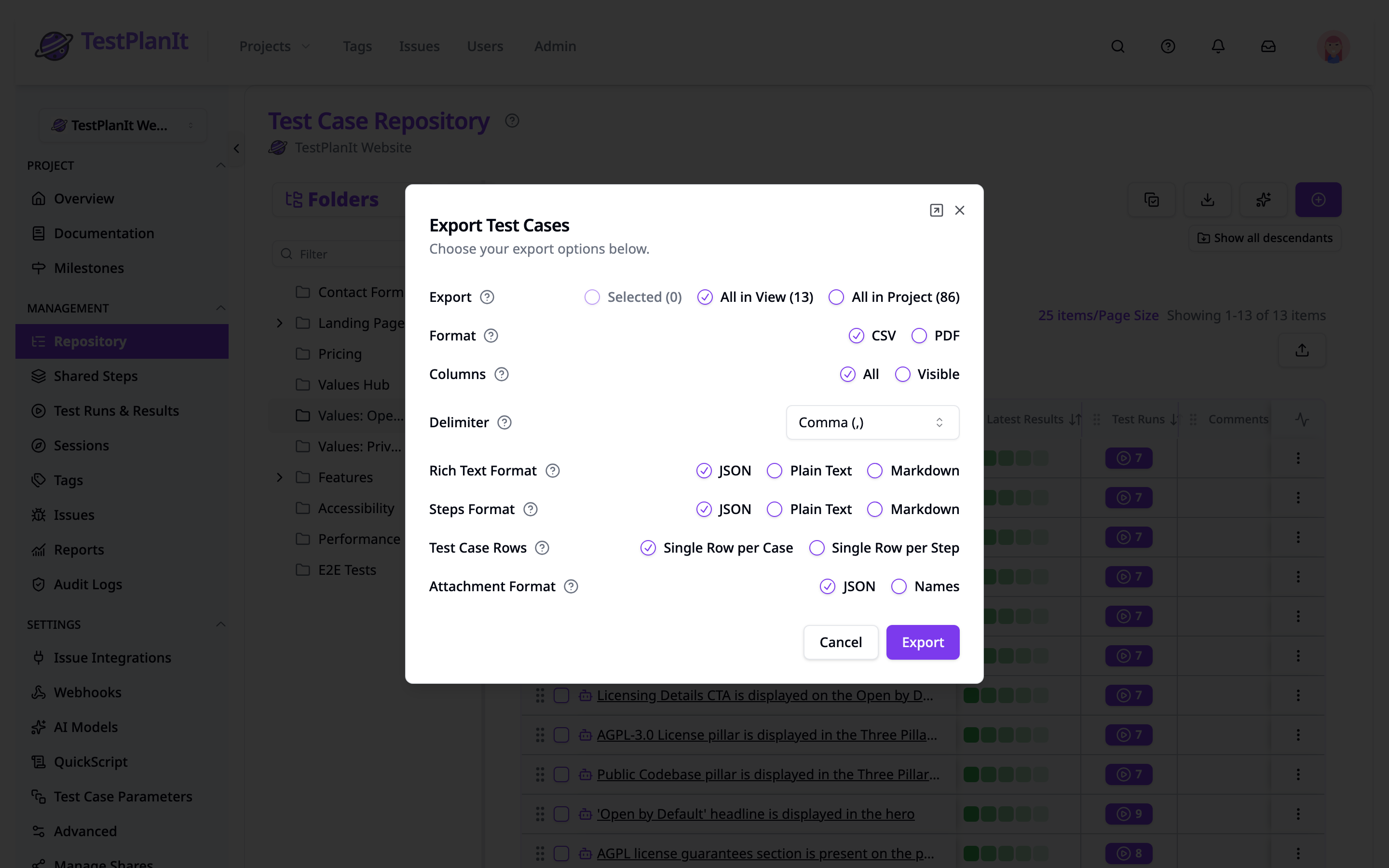
Export Options
-
Export (scope)
- Selected — only the test cases you have checked in the table. Disabled when nothing is selected.
- All in View — every test case matching the current filters, including those on pages you have not scrolled to.
- All in Project — every test case in the project, ignoring both selections and filters.
Each option shows a live count of the cases it would export.
-
Format
- CSV or PDF
-
CSV Options — the options below appear only when the format is CSV
- Columns: All (every available field, including template custom fields) or Visible (only the columns currently shown in the table)
- Delimiter: Comma (
,), Semicolon (;), Colon (:), or Pipe (|) - Rich Text Format: JSON (raw TipTap JSON), Plain Text (stripped formatting), or Markdown
- Steps Format: JSON, Plain Text, or Markdown
- Test Case Rows: Single Row per Case or Single Row per Step
- Attachment Format: JSON, Names, or Embed Images
Export Process
- Navigate to Repository
- Click Export button
- Configure export options
- Click Export
- Download the generated file
Automated Test Results Import
Import automated test results from multiple testing frameworks and formats.
Supported Formats
TestPlanIt supports importing test results from the following formats:
| Format | File Types | Description |
|---|---|---|
| JUnit XML | .xml | Standard JUnit XML format (Java, Python pytest, etc.) |
| TestNG XML | .xml | TestNG XML reports from Java projects |
| NUnit XML | .xml | NUnit v2/v3 XML reports from .NET projects |
| xUnit XML | .xml | xUnit.net XML reports from .NET projects |
| MSTest TRX | .trx, .xml | Visual Studio Test Results (TRX) files |
| Mocha JSON | .json | Mocha JSON reporter output (JavaScript/Node.js) |
| Cucumber JSON | .json | Cucumber JSON reporter output (BDD frameworks) |
Accessing Test Results Import
There are two ways to start a test results import:
Using the Import button:
- Navigate to Test Runs in your project
- Click Import Results button
- The import dialog opens with format options
Using drag and drop:
- Drag one or more test result files (
.xml,.trx, or.json) from your desktop over the Test Runs page - A full-page drop overlay will appear indicating you can drop to import
- Drop the files — the import dialog opens automatically with your files pre-loaded
- Multiple files can be dropped at once
Import Process
-
Select Format
- Choose Auto-detect (recommended) to automatically identify the file format
- Or manually select a specific format from the dropdown
-
Configure Test Run
- Enter a Test Run Name (required)
- Select a Parent Folder for organizing imported test cases
- Choose a Template to apply to imported test cases
- Select State for the test run
- Optionally set Configuration, Milestone (only active milestones are shown), and Tags
- Optionally set Link results to existing cases to match results to an existing case by ID instead of by name + class name (see Linking results to existing cases by ID). Leave it on Off (the default) to keep the standard name + class matching.
-
Upload Files
- Select one or more test result files
- Multiple files of the same format can be imported together
-
Import Execution
- Progress is displayed in real-time
- Test cases are automatically created or updated
- Results are mapped to appropriate statuses
Format-Specific Examples
JUnit XML Format
<?xml version="1.0" encoding="UTF-8"?>
<testsuites>
  <testsuite name="LoginTests" tests="3" failures="1" errors="0" time="45.2">
    <testcase name="testValidLogin" classname="auth.LoginTest" time="12.5">
      <!-- Passing test -->
    </testcase>
    <testcase name="testInvalidLogin" classname="auth.LoginTest" time="8.3">
      <failure message="Login should fail">
        Expected login to fail but user was logged in
      </failure>
    </testcase>
    <testcase name="testPasswordReset" classname="auth.LoginTest" time="24.4">
      <error message="Database connection failed">
        Could not connect to test database
      </error>
    </testcase>
  </testsuite>
</testsuites>
NUnit XML Format
<?xml version="1.0" encoding="utf-8"?>
<test-run id="0" name="MyApp.Tests" testcasecount="2" result="Passed"
          engine-version="3.12.0" clr-version="4.0.30319.42000">
  <test-suite type="Assembly" name="MyApp.Tests.dll">
    <test-case id="1001" name="AdditionTest" fullname="MyApp.Tests.CalculatorTests.AdditionTest"
               result="Passed" duration="0.0234">
    </test-case>
    <test-case id="1002" name="DivisionTest" fullname="MyApp.Tests.CalculatorTests.DivisionTest"
               result="Failed" duration="0.0156">
      <failure>
        <message>Expected: 5, But was: 4</message>
        <stack-trace>at MyApp.Tests.CalculatorTests.DivisionTest()</stack-trace>
      </failure>
    </test-case>
  </test-suite>
</test-run>
MSTest TRX Format
<?xml version="1.0" encoding="UTF-8"?>
<TestRun xmlns="http://microsoft.com/schemas/VisualStudio/TeamTest/2010">
  <Results>
    <UnitTestResult testId="abc-123" testName="TestMethod1" outcome="Passed"
                    duration="00:00:01.234" />
    <UnitTestResult testId="abc-124" testName="TestMethod2" outcome="Failed"
                    duration="00:00:00.567">
      <Output>
        <ErrorInfo>
          <Message>Assert.AreEqual failed</Message>
          <StackTrace>at TestClass.TestMethod2()</StackTrace>
        </ErrorInfo>
      </Output>
    </UnitTestResult>
  </Results>
</TestRun>
Cucumber JSON Format
[
  {
    "uri": "features/login.feature",
    "keyword": "Feature",
    "name": "User Login",
    "elements": [
      {
        "keyword": "Scenario",
        "name": "Valid login",
        "steps": [
          {
            "keyword": "Given",
            "name": "a registered user",
            "result": { "status": "passed", "duration": 1234567 }
          },
          {
            "keyword": "When",
            "name": "they enter valid credentials",
            "result": { "status": "passed", "duration": 2345678 }
          }
        ]
      }
    ]
  }
]
Mocha JSON Format
{
  "stats": {
    "suites": 2,
    "tests": 5,
    "passes": 4,
    "failures": 1,
    "duration": 1234
  },
  "results": [
    {
      "title": "Authentication",
      "suites": [],
      "tests": [
        {
          "title": "should login successfully",
          "fullTitle": "Authentication should login successfully",
          "duration": 45,
          "state": "passed"
        }
      ]
    }
  ]
}
Status Mapping
Test result statuses are automatically mapped to TestPlanIt statuses:
| Source Status | TestPlanIt Status | Description |
|---|---|---|
| pass, passed, success, ok | Passed | Test executed successfully |
| fail, failed, failure | Failed | Test assertion failed |
| error, errored, broken | Error | Test execution error |
| skip, skipped, pending, ignored, disabled | Skipped | Test was not executed |
Folder Structure
When importing test results, TestPlanIt automatically creates a folder hierarchy based on the test suite structure:
- For .NET formats (NUnit, xUnit, MSTest): Namespace-based folders are created
MyApp.Tests.CalculatorTests→MyApp>Tests>CalculatorTests
- For Cucumber: Feature file paths are used
features/login/authentication.feature→features>login>authentication
- For Java formats (JUnit, TestNG): Class name hierarchy is used
com.example.auth.LoginTest→com>example>auth>LoginTest
Test Case Auto-Creation
When importing test results, TestPlanIt automatically creates or updates test cases:
- Test Name: Uses the test method/scenario name
- Class Name: Stores the fully qualified name for uniqueness
- Source: Records the format type (JUNIT, NUNIT, CUCUMBER, etc.)
- Template: Uses the selected template from the import dialog
- Folder: Organized based on suite/namespace structure
Auto-Detection
The Auto-detect feature examines file content and extension to determine the format:
.trxfiles: Always identified as MSTest- JSON files: Analyzed for Cucumber or Mocha structure
- XML files: Parsed for format-specific root elements:
<testsuites>or<testsuite>→ JUnit<testng-results>→ TestNG<test-run>with NUnit attributes → NUnit<assemblies>→ xUnit<TestRun>with Microsoft namespace → MSTest
Advanced Import Features
Attachment Handling
CSV Import with Attachments
The CSV importer accepts attachment references as a JSON array in the cell mapped to the Attachments system field. Each entry describes a file that's already accessible to TestPlanIt by URL:
"Name","Attachments"
"Screenshot Test","[{""name"":""screenshot.png"",""url"":""https://example.com/screenshot.png"",""mimeType"":""image/png"",""size"":12345}]"
The importer does not fetch local file paths or arbitrary filenames — only the JSON shape above is consumed. This is the same shape the CSV exporter emits, so attachment metadata round-trips through an export/import cycle.
Cells in any other format (semicolon-separated filenames, comma-separated, plain text) are silently treated as having no attachments.
JUnit Import with Attachments
Include test artifacts in JUnit XML:
<testcase name="testWithScreenshot">
  <system-out>
    [[ATTACHMENT|screenshot.png|http://example.com/screenshot.png]]
  </system-out>
</testcase>
Bulk Operations
Bulk Test Case Updates
To update existing test cases via CSV:
- Export the test cases you want to update
- Edit the CSV — keep the
IDcolumn intact - Re-import the CSV with the
IDcolumn mapped to the ID system field
Rows whose ID matches an existing test case update that case in place; rows without a matching ID (or without an ID mapping) create new cases. There is no separate "Update existing" mode; the importer's behavior is driven entirely by whether an ID is mapped and matches.
Bulk Tag Management
Tags imported from a CSV are split on commas and matched against existing tags by name. Unknown tag names are created on import.
Error Handling
Import Validation
Common validation errors:
- Missing required fields
- Invalid data types
- Duplicate test cases
- Missing folders/templates
- Attachment access issues
Error Resolution
- Preview: The fourth wizard page previews the parsed rows so you can spot mapping mistakes before clicking Import
- Validation is all-or-nothing: if any row fails validation, the import aborts and no test cases are created — fix the offending rows in your CSV and retry
- Duplicate warnings are non-blocking: the preview flags rows that share a name with an existing case (or another row in the same import), but they don't block the import
Export Features
What You Can Export
- Test cases from the Repository, including all template custom fields and attachment metadata
- Test results from a Test Run, in CSV or PDF
- Sessions as a PDF report from the session details page
- Milestone reports as a PDF from the milestone details page — an aggregated, evidence-grade summary of the milestone and its sub-milestones
- Audit log entries from project administration
Export Formats
CSV Export
- Standard comma-separated values
- Configurable field selection
- Configurable delimiter (comma, semicolon, colon, pipe)
- Rich text format options: Export Text Long fields and Steps as JSON, Plain Text, or Markdown
- JSON: Raw TipTap JSON (lossless, ideal for re-import)
- Plain Text: Stripped of all formatting
- Markdown: Preserves formatting as markdown syntax (headings, bold, italic, lists, links, etc.). Ideal for human readability and round-trip import/export
PDF Export
- Professional document format for sharing and printing
- Formatted test case details with sections
- Page numbers and export metadata
PDF Export Options:
| Option | Values | Description |
|---|---|---|
| Scope | Selected / All Filtered / All Project | Which test cases to include |
| Columns | Visible / All | Which fields to export |
| Text Fields | JSON / Plain Text | How to format rich text content (Markdown option available in CSV only) |
| Attachment Format | Names / Embed Images | How to display attachments |
| Steps Format | JSON / Plain Text | How to format test steps (Markdown option available in CSV only) |
Attachment Format Options:
- Names: Display attachment file names as text (default for PDF)
- Embed Images: Embed image attachments directly in the PDF document. Non-image files are listed by name. Supported image formats: JPEG, PNG, GIF, WebP, BMP.
PDF exports (test case, test run, session, and milestone reports) are generated in English by design, regardless of the application's display language. Dates and durations are formatted for your locale, but the document body — titles, section headings, table headers, and field labels — is always English. These documents are intended as canonical, archival evidence artifacts, so their language is kept consistent rather than localized.
Integration Examples
CI/CD Pipeline Integration
Java/Maven with JUnit
# Example Jenkins pipeline step
pipeline {
    stages {
        stage('Test') {
            steps {
                sh 'mvn test'
                archiveArtifacts 'target/surefire-reports/*.xml'
            }
        }
        stage('Upload Results') {
            steps {
                script {
                    // Upload JUnit results to TestPlanIt
                    sh '''
                        curl -X POST "${TESTPLANIT_URL}/api/test-results/import" \
                            -H "Authorization: Bearer ${TESTPLANIT_TOKEN}" \
                            -F "files=@target/surefire-reports/TEST-*.xml" \
                            -F "name=Build ${BUILD_NUMBER}" \
                            -F "projectId=${PROJECT_ID}" \
                            -F "format=auto"
                    '''
                }
            }
        }
    }
}
.NET with NUnit/xUnit
# GitHub Actions example
- name: Run Tests
  run: dotnet test --logger "trx;LogFileName=results.trx"

- name: Upload Results
  run: |
    curl -X POST "${{ secrets.TESTPLANIT_URL }}/api/test-results/import" \
        -H "Authorization: Bearer ${{ secrets.TESTPLANIT_TOKEN }}" \
        -F "files=@TestResults/results.trx" \
        -F "name=PR #${{ github.event.number }}" \
        -F "projectId=${{ vars.PROJECT_ID }}" \
        -F "format=auto"
Node.js with Mocha
# Generate JSON report
mocha --reporter json > test-results.json

# Upload to TestPlanIt
curl -X POST "${TESTPLANIT_URL}/api/test-results/import" \
    -F "[email protected]" \
    -F "name=Mocha Tests $(date +%Y-%m-%d)" \
    -F "projectId=${PROJECT_ID}" \
    -F "format=mocha"
Cucumber/BDD
# Generate Cucumber JSON report
cucumber-js --format json:results.json

# Upload to TestPlanIt
curl -X POST "${TESTPLANIT_URL}/api/test-results/import" \
    -F "[email protected]" \
    -F "name=BDD Tests $(date +%Y-%m-%d)" \
    -F "projectId=${PROJECT_ID}" \
    -F "format=cucumber"
Test Management Migration
# Export from old system
curl -X GET "https://old-system.com/api/testcases" > testcases.json

# Convert to CSV format
python convert-to-csv.py testcases.json testcases.csv

# Import to TestPlanIt
# Use CSV import feature in UI
API Reference
CSV Import API
The CSV import endpoint is consumed by the in-app wizard. It accepts a JSON body (not multipart) and streams progress back as Server-Sent Events.
POST /api/repository/import
Content-Type: application/json

{
  "projectId": 123,
  "fileType": "csv",
  "file": "ID,Name,Steps\n1,Login,...",
  "delimiter": ",",
  "hasHeaders": true,
  "encoding": "UTF-8",
  "templateId": 456,
  "importLocation": "single_folder",
  "folderId": 789,
  "folderSplitMode": null,
  "rowMode": "single",
  "fieldMappings": [
    {"csvColumn": "ID", "templateField": "id"},
    {"csvColumn": "Name", "templateField": "name"},
    {"csvColumn": "Steps", "templateField": "steps"}
  ]
}
Key fields:
importLocation—"single_folder","root_folder", or"top_level"rowMode—"single"(one row per case) or"multi"(one row per step)folderSplitMode—"plain","slash","dot", or"greater_than"(required whenimportLocationisroot_folderortop_leveland a folder column is mapped)
The response is an SSE stream of progress events followed by a {"complete": true} or {"error": "..."} payload.
Automated Test Results Import API
POST /api/test-results/import
Content-Type: multipart/form-data

files: [Test result file(s)]
name: "Test Run Name"
projectId: 123
format: "auto" | "junit" | "testng" | "nunit" | "xunit" | "mstest" | "mocha" | "cucumber"
templateId: 456
stateId: 789
parentFolderId: 101
configId: 102 (optional)
milestoneId: 103 (optional)
tagIds: [1, 2, 3] (optional)
caseMatcher: "off" | "name" | "property" | "auto" (optional, default "off")
caseIdFormat: "brackets" | "c" | "tc" (optional, default "brackets")
Response is Server-Sent Events (SSE) with progress updates:
{"progress": 25, "status": "Processing test case 5 of 20..."}
{"progress": 100, "status": "Import completed successfully!"}
{"complete": true, "testRunId": 12345}
By default each result is matched to a case by name + class name, so renaming an automated test creates a duplicate case. Set caseMatcher to instead link results to an existing case by an ID carried in the test name (caseIdFormat preset) or a test_id / testplanit_case_id JUnit property — see Linking results to existing cases by ID in the CLI guide for the full behavior. Results whose referenced case ID is not found in the project are skipped and listed in the final SSE event as caseIdWarnings.
Export
There is no server-side export endpoint. CSV, PDF, and other exports are generated in the browser from data already loaded by the Repository view — the export reflects the current filter, scope, and column selection in the UI. Use the Export button in the Repository toolbar to configure and download.
Best Practices
For Import Operations
-
Data Preparation
- Clean and validate data before import
- Use consistent naming conventions
- Prepare folder structure in advance
-
Testing
- Test with small data sets first
- Use preview mode to validate mapping
- Backup existing data before bulk operations
-
Performance
- Split large imports into smaller batches
- Import during off-peak hours
- Monitor system resources during import
For Export Operations
-
Regular Backups
- Schedule regular data exports
- Export to multiple formats
- Store exports in secure locations
-
Selective Exports
- Export only necessary data
- Use filters to reduce file size
- Consider privacy and security requirements
Troubleshooting
Common Import Issues
Issue: CSV parsing errors Solution: Check file encoding (UTF-8), delimiter consistency, quote handling
Issue: Field mapping failures Solution: Verify column headers match expected format, check data types
Issue: Duplicate test cases
Solution: Map your CSV's ID column to the ID system field — rows with a matching ID update the existing case instead of creating a duplicate
Issue: Multi-row CSV imports each step as a separate case
Solution: On the first wizard page, choose "Test cases can span multiple rows", then make sure (1) the CSV has a recognized step content column (Step Content, Step, Steps, Action, Actions, Step Description, or any column mapped to the Steps system field), and (2) an ID or Name column is mapped so rows can be grouped. The preview page shows whether grouping happened.
Issue: Attachments don't appear after import Solution: The CSV importer only accepts attachments as the JSON array shape emitted by the exporter — see CSV Import with Attachments. Plain filenames or URLs in attachment cells are silently dropped.