Reporting & Analytics
Each project has its own Reports area at Project → Reports, where you can run pre-built reports against the project's repository, test runs, sessions, and issue links, or build custom reports against a focused set of dimensions and metrics.
For analytics aggregated across every project in the system, see Administration → Reporting & Analytics.
Pre-Built Reports
Pre-built reports have fixed configurations and don't require dimension or metric selection. They appear in the Report Type dropdown on the project's Reports page, which lists every report type alphabetically.
| Report | What it shows |
|---|---|
| Automation Candidates | AI-ranked recommendation of which manual test cases to automate next, with metric-grounded rationales per case. |
| Automation Trends | Repository growth over time pivoted by automation status (automated vs. manual). |
| Execution Log | Chronological log of individual test result records, with expandable step-level detail. |
| Flaky Tests | Test cases whose pass/fail outcomes flip across recent runs, with the flip count and timeline. |
| Issue Test Coverage | Coverage of external issues (Jira, GitHub, Azure DevOps, GitLab, Gitea/Forgejo) by linked test cases. |
| Iteration Matrix | A 2D grid of parameterized test case results across configurations. |
| Requirement Coverage Changes | What changed between a saved traceability snapshot and a later snapshot or the live matrix — one row per requirement whose coverage differs, classified by what changed. Appears only when the project has requirements enabled. |
| Requirement Coverage Gaps | Every requirement with zero linked test cases — and, by default, those whose linked tests have never run — with priority, status, and age, so coverage debt is visible without opening the requirements tree. Appears only when the project has requirements enabled. |
| Requirement Traceability | Every requirement paired with its linked test cases and their latest execution result. Appears only when the project has requirements enabled. |
| Test Case Health | Per-case health score combining staleness, execution frequency, and pass-rate pattern. |
| Impact Analysis History | Every Impact analysis with its trigger, selected cases, and the outcome of the run it composed. |
| Code Pin Coverage | Code Pins by repository and directory, with the changed files no pin covered. |
Custom Reports
The Report Builder lets you compose a report by picking a data source (Test Execution, Repository Stats, User Engagement, Project Health, Milestone Readiness, Session Analysis, Issue Tracking), then choosing dimensions, metrics, and a chart type. The builder also supports interactive drill-down — click any metric cell to open a drawer showing the underlying records.
Exporting Results
Tabular reports — every pre-built report except the Iteration Matrix and Automation Candidates (which have their own dedicated views), plus any custom report — show an Export CSV button above the results table.
- It exports the columns you see, with their displayed values (status and priority names, pass-rate percentages, durations, dates), for the entire result set — not just the rows currently scrolled into view.
- The Execution Log, which loads incrementally as you scroll, fetches all of its pages first so the file is complete.
- Export is also available on read-only Share Links and works the same in cross-project reports (where it adds a Project column).
This is separate from the drill-down Export to CSV in the Report Builder, which exports the underlying records behind a single metric cell rather than the report's summary rows.
Saved Reports
Save any report — pre-built or custom — to come back to it later without creating a Share Link. Saved reports are private: only you can open them. Administrators see their titles listed under Administration → Manage Shares.
- Run the report.
- Select the Save icon in the report toolbar, next to Share.
- Enter a name and an optional description.
- Choose Live or Frozen data:
- Live reopens the report with every setting restored and fetches current data. A preset date range such as Last week moves with the date you open it.
- Frozen keeps the results from now. Opening it shows those exact results, when they were frozen, and by whom. See Live and Frozen Data for the row limit and what frozen reports support.
- Select Save.
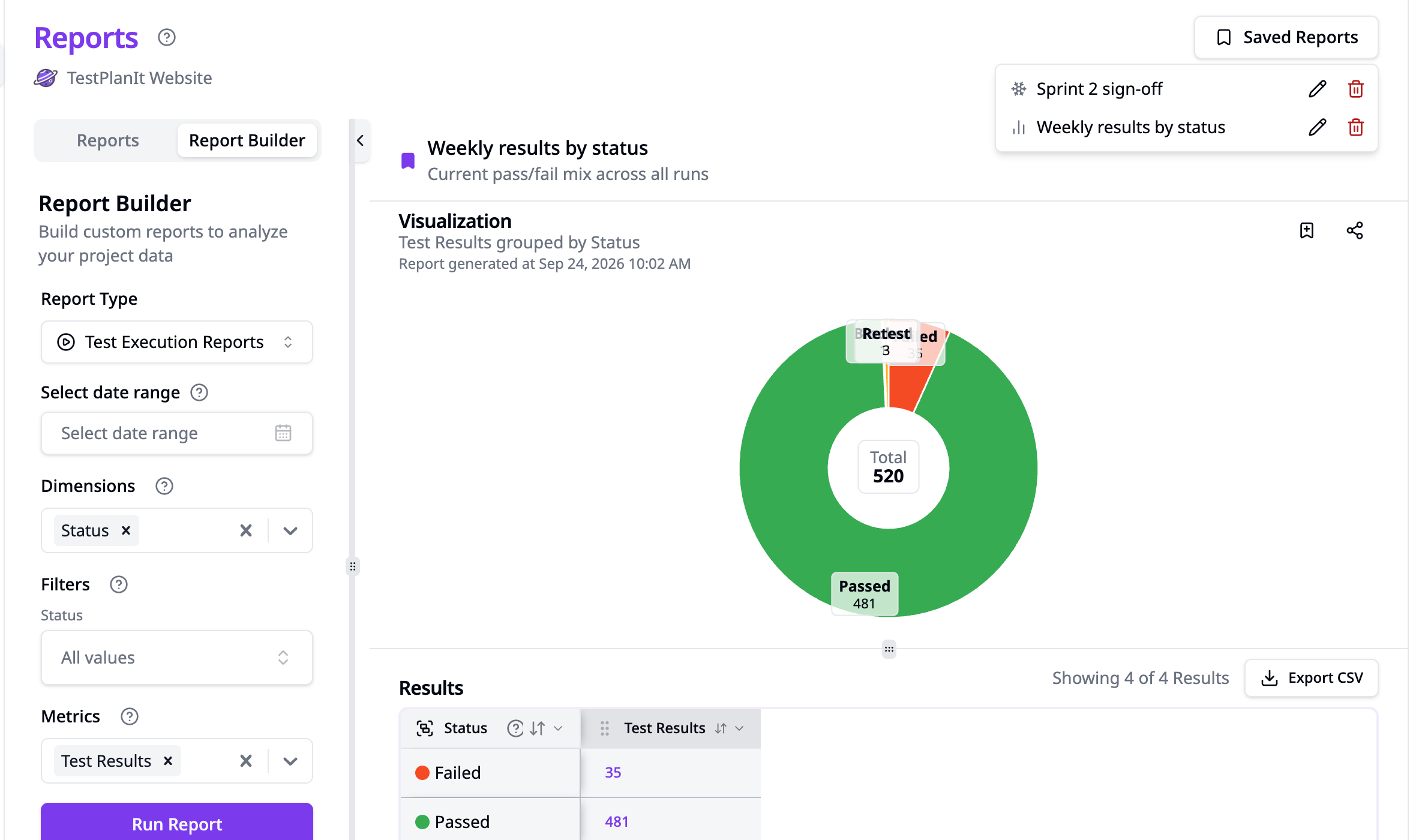
To open, rename, or delete a saved report, select Saved Reports at the top right of the page, next to the page title. The list shows the reports you saved on this page: project reports on that project's Reports page, and cross-project reports on Administration → Reports. A snowflake icon marks frozen reports, which open in a new tab. A live saved report opens on the Reports page with its name and description shown above the results; running a different report there clears them.
Sharing
Any report — pre-built or custom — can be shared with team members, clients, and stakeholders using a Share Link. A Share Link can be live (re-runs the report when opened) or frozen (always shows the results from when it was created). See Share Links for live and frozen data, the three share modes (Public, Password-Protected, Authenticated), password rate limiting, view notifications, and view counts.