Security Settings
The Security page provides centralized control over sign-in enforcement, password policy, account lockout rules, and enforcement actions. Only administrators (ADMIN access level) can access this page.
To access Security Settings, navigate to Admin → Authentication → Security from the left-hand navigation menu.
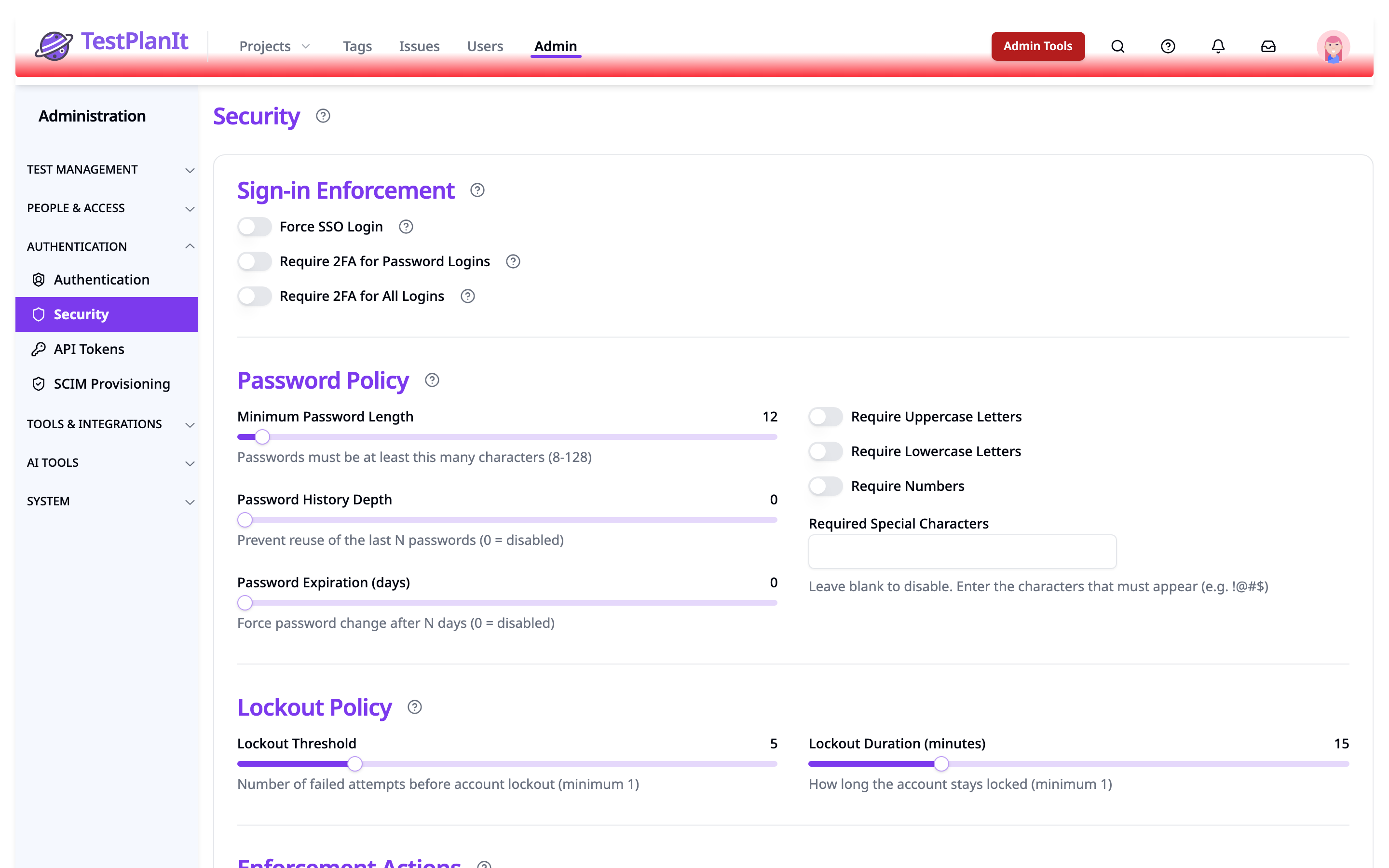
Sign-in Enforcement
The Sign-in Enforcement section combines three toggles that govern how users sign in. All three save immediately when flipped; there is no separate Save step.
Force SSO Login
When enabled, this setting:
- Removes the traditional email/password login form from the sign-in page
- Rejects email/password sign-in requests, including ones sent directly to the API
- Completely disables the signup page (returns 404)
- Requires all users to authenticate through configured SSO providers
- Prevents creation of local accounts
Before enabling Force SSO, ensure:
- At least one SSO provider is properly configured at Admin → Authentication → Authentication
- All existing users can authenticate through the SSO provider
- Admin accounts have SSO access to prevent lockout
Require 2FA for Password Logins
When enabled, users signing in with email/password must set up and use two-factor authentication. SSO logins (Google, Apple, Microsoft, SAML, Magic Link) are not affected by this toggle on its own.
Require 2FA for All Logins
When enabled, all users must verify with 2FA after signing in, including SSO users. SSO users must set up and verify 2FA after identity provider authentication. Enabling this toggle implicitly enables Require 2FA for Password Logins as well.
Password Policy
Password policy settings define the minimum requirements for all user passwords. These rules are enforced when users sign up, change their password, or are forced to set a new password.
Minimum Password Length
Set the minimum number of characters required for passwords. Configurable from 8 to 128 characters. The default is 12.
Character Requirements
Toggle individual character class requirements:
- Require Uppercase — At least one uppercase letter (A–Z)
- Require Lowercase — At least one lowercase letter (a–z)
- Require Numbers — At least one digit (0–9)
- Required Special Characters — Specify a set of characters that passwords must include at least one of (e.g.,
!@#$%^&*). Leave empty to disable this requirement.
Password History
Set the Password History Depth (0–24) to prevent users from reusing recent passwords. A value of 5 means the last 5 passwords are remembered and cannot be reused. Set to 0 to disable history checks.
Password Expiration
Set the Password Expiration Days (0–365) to require users to change their password periodically. When a password expires, the user is redirected to the forced password change page on their next login. Set to 0 to disable expiration.
Password expiration only applies to users with credential-based authentication (INTERNAL or BOTH auth methods). SSO-only users are not affected.
Account Lockout Policy
Lockout settings protect against brute-force login attempts by temporarily locking accounts after repeated failures.
Lockout Threshold
The number of consecutive failed login attempts before the account is locked. Configurable from 1 to 20 attempts. The default is 5.
Lockout Duration
How long (in minutes) an account remains locked after exceeding the threshold. Configurable from 1 to 60 minutes. The default is 15.
After the lockout duration expires, the user can attempt to log in again. Successful login resets the failed attempt counter.
Enforcement Actions
Force Password Change (Individual)
From the Admin → User Management page, click the three-dot menu on any internal user and select Force Password Change. This sets a flag on the user's account that requires them to set a new password on their next login.
- Only available for users with INTERNAL or BOTH authentication methods (not SSO-only users)
- Not available for your own account (to prevent self-lockout)
- The user sees a dedicated password change page before they can access any other part of the application
Force All Users to Change Password
On the Security page, click Force All Users to Change Password to require every active internal user to change their password on next login. A confirmation dialog shows the number of affected users before proceeding.
This targets users with INTERNAL or BOTH auth methods who are active and not already flagged for a password change.
Revoke Password
From the Admin → User Management page, click the three-dot menu on any internal user and select Revoke Password. This removes the user's password entirely, requiring them to use an alternative login method (SSO or Magic Link).
Prerequisites: At least one passwordless login method must be configured before passwords can be revoked:
- A Magic Link SSO provider is enabled, or
- An email server is configured for Magic Link delivery
If no passwordless login method is available, the revoke action is blocked with an error message.
- Not available for your own account
- Not available for users who don't have a password set
Password Strength Indicator
When users set or change their password (on the signup page, profile change password modal, forced password change page, or the admin Add User dialog), a real-time Password Strength Indicator is displayed. This shows:
- A strength bar with four levels (Weak, Fair, Strong, Very Strong) powered by the zxcvbn algorithm, which evaluates password strength beyond simple rule checks
- A policy checklist showing which requirements are met or unmet based on the current password policy
The strength indicator updates as the user types, providing immediate feedback before form submission.
Saving Changes
After adjusting any settings on the Security page, click Save Changes at the bottom of the page. A success notification confirms that the settings have been saved. All changes take effect immediately for subsequent login attempts and password changes.
Audit Logging
All security-related actions are recorded in the Audit Log:
- PASSWORD_POLICY_CHANGED — When any password policy or lockout setting is modified
- FORCE_PASSWORD_CHANGE — When an individual or bulk forced password change is triggered
- PASSWORD_REVOKED — When a user's password is revoked