Sessions Page
Sessions are used for exploratory testing or other types of unstructured testing activities. This page provides an overview of all test sessions within the current project.
Page Layout
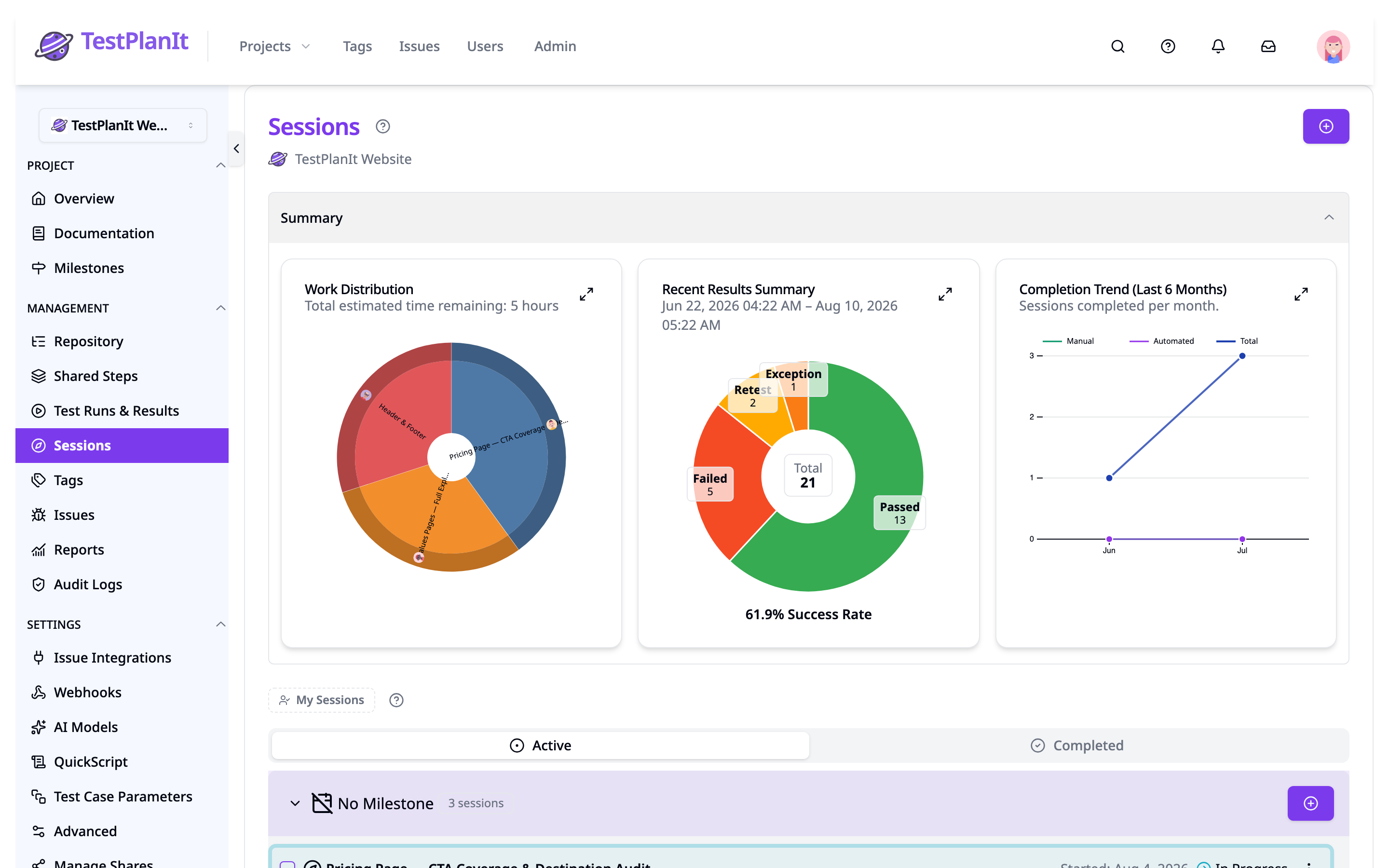
Similar to the Test Runs page, this page is structured within a card layout and features:
-
Header:
- Displays the title "Sessions".
- Shows the current Project Name and Icon.
- Includes an Add Session button (visible to users with appropriate permissions - Admin or Project Admin) to open the Add Session dialog.
-
Summary Cards: A collapsible Summary section of chart cards (work distribution, recent session results, and completion trend). Collapse it with its header to give the session list the full page; the choice is remembered per project in your browser.
-
Filter Chips: A row of filter chips above the tabs.
-
Tabs:
- Active: Shows sessions that are currently in progress (not marked as completed).
- Completed: Shows sessions that have been marked as completed.
Filtering
Above the tabs sits a row of filter chips. Click a chip to switch it on, click it again to switch it off. Filters apply to both the Active and Completed tabs, so switching tabs keeps your view narrowed.
- My Sessions: Limits the list to sessions you take part in — see What counts as taking part.
A Clear All button appears whenever at least one chip is on and switches all of them off at once.
What counts as taking part
My Sessions shows a session when either of these is true for you:
- You created the session.
- The session is assigned to you.
These are the same two roles credited by the contributor avatars on each session row (see Session Item), so a session appearing under this filter is a session your avatar appears on. The Test Runs page's third role — "recorded a test result" — has no session equivalent, because a session's results are all authored under its single assignee.
The chips narrow the two session lists only. The Summary charts above them — including the work-distribution breakdown — keep reporting on every session in the project, so turning on My Sessions does not reshape the project's overall picture.
Your chip selection is stored in your browser for each project, so returning to a project's Sessions page restores the filters you last used there. Because they are stored locally rather than in the address bar, filters are personal — they do not travel to teammates through a copied link, and they do not follow you to another browser or device.
Active Tab
This is the default view. Active sessions are grouped by their associated milestone:
-
Milestone Groups: Each milestone with associated active sessions is displayed as a collapsible section header. The header shows:
- A chevron that collapses and expands the group (see Collapsing Milestone Groups)
- Milestone Icon and Name (See Milestone Details)
- A count of the sessions in the group, including those in any child milestones
- Milestone Status Badge (e.g., Upcoming, In Progress, Completed)
- Milestone Dates (Start/End/Due)
- An Add Session button specific to that milestone, allowing you to quickly create a session linked to it.
-
Unscheduled Sessions: Sessions not linked to any milestone are grouped under a special "Unscheduled" section header.
- This section also has an Add Session button to create an unscheduled session.
- It collapses and expands just like a milestone group.
-
Session Items: Within each group (Milestone or Unscheduled), individual sessions are listed. See Session Item Details for more information on how each session is displayed.
Sessions within milestone groups are sorted by creation date. Milestones themselves are sorted logically (often chronologically based on start/end dates or a defined order).
-
Empty State: If the project has no active sessions at all, a message is displayed, along with a prominent Create Session button (if the user has permission). If sessions exist but none match your filter chips, the message says so instead and the button is omitted — the fix is to clear a filter, not to create a session.
Collapsing Milestone Groups
Projects with many milestones produce a long page. Every group can be folded away:
- Click the chevron at the start of a group header to collapse or expand that group. Only the chevron toggles — the rest of the header stays clickable, so the milestone name still opens the milestone and the Add button still creates a session.
- Hold Alt (⌥ on Mac) while clicking any group's chevron to expand or collapse all groups at once. Resting the pointer on a chevron for a moment reveals a hint naming the shortcut.
- Collapsing a parent milestone also hides the child milestone groups nested inside it, folding away an entire branch in one click.
- The session count in each header includes sessions in child milestones, so a collapsed group still tells you how much it is hiding.
Which groups you collapsed is stored in your browser for each project and restored on your next visit. This is personal to you and your current browser, and is kept separately from the same setting on the Test Runs page. Groups that appear later — a new milestone, or one whose first session you just created — start expanded.
Bulk Operations
Several sessions can be changed in one step. Users with edit, complete, or delete permission for sessions see a checkbox at the start of each session row; without any of those permissions the checkboxes are hidden entirely.
Ticking at least one checkbox reveals a toolbar above the list. Each action button carries the number of selected sessions it will apply to, and the X button deselects everything. On narrow windows the buttons collapse into a single ⋮ menu.
- Edit: Opens a dialog for changing the milestone, workflow state, assignee, and tags of every selected session. Tick the fields you want to change — untouched fields keep each session's current value. The assignee field can also bulk-unassign, and tags are added to each session's existing tags, never replacing them.
- Complete: Completes every selected active session at once. Like the single-session dialog, you pick the done state and the completion date; each session records a version snapshot exactly as it would when completed individually.
- Delete: Deletes the selected sessions after confirmation. Historical data remains in the project, and deleted sessions can be restored from the Trash.
Edit and Complete skip sessions that are already completed, and each button's count reflects only the selected sessions it will actually touch. Delete applies to any selected session, so on the Completed tab it is the one action available.
Actions you lack permission for are not shown, and every change is checked per session on the server — if some sessions cannot be updated, the rest still go through and a message reports how many failed.
Completed Tab
This tab displays a flat list of all sessions that have been marked as completed.
- Sorting: Completed sessions are sorted by their completion date, with the most recently completed sessions appearing first.
- Session Items: Each completed session is displayed using the Session Item component, showing key details.
- Filtering: The filter chips apply here too, alongside this tab's own search box. Filtering happens across the whole set of completed sessions, not just the page you are looking at, and the result is re-paginated from the first page.
- Empty State: If there are no completed sessions, a message indicating this is shown. If the search box or a filter chip excluded them all, the message says nothing matched instead.
Multi-Configuration Sessions
Sessions support selecting multiple configurations when creating or duplicating. When multiple configurations are selected, one session is created per configuration, all sharing the same metadata (name, template, state, milestone, tags, etc.) and linked via a shared configuration group ID. This is useful for testing across multiple environments (e.g., Chrome, Firefox, Safari) without manually creating separate sessions. See Add Session - Multi-Configuration Support for details.
Grouping can also be corrected after the fact — a session can join, change, or leave a group from the Configuration Group field on its details page.
Session Duplication
Any session can be duplicated from its context menu (three-dot menu on the session item). Duplicating opens the Add Session dialog pre-populated with the original session's metadata, allowing you to quickly re-test scenarios for regression cycles or new milestones. Results are not copied — the new session starts fresh. See Add Session - Session Duplication for details.