Test Runs Page
This page provides an overview of all test runs within the current project. Test runs are specific instances where a set of test cases are executed against a particular configuration or environment.
Page Layout
The page is structured within a card layout and features:
-
Header:
- Displays the title "Test Runs".
- Shows the current Project Name and Icon.
- Includes an Add Test Run button (visible to users with appropriate permissions - Admin or Project Admin) to open the Add Test Run Modal.
-
Summary Cards: A row of at-a-glance cards above the run list (see Summary Cards).
-
Tabs:
- Active: Shows test runs that are currently in progress (not marked as completed).
- Completed: Shows test runs that have been marked as completed.
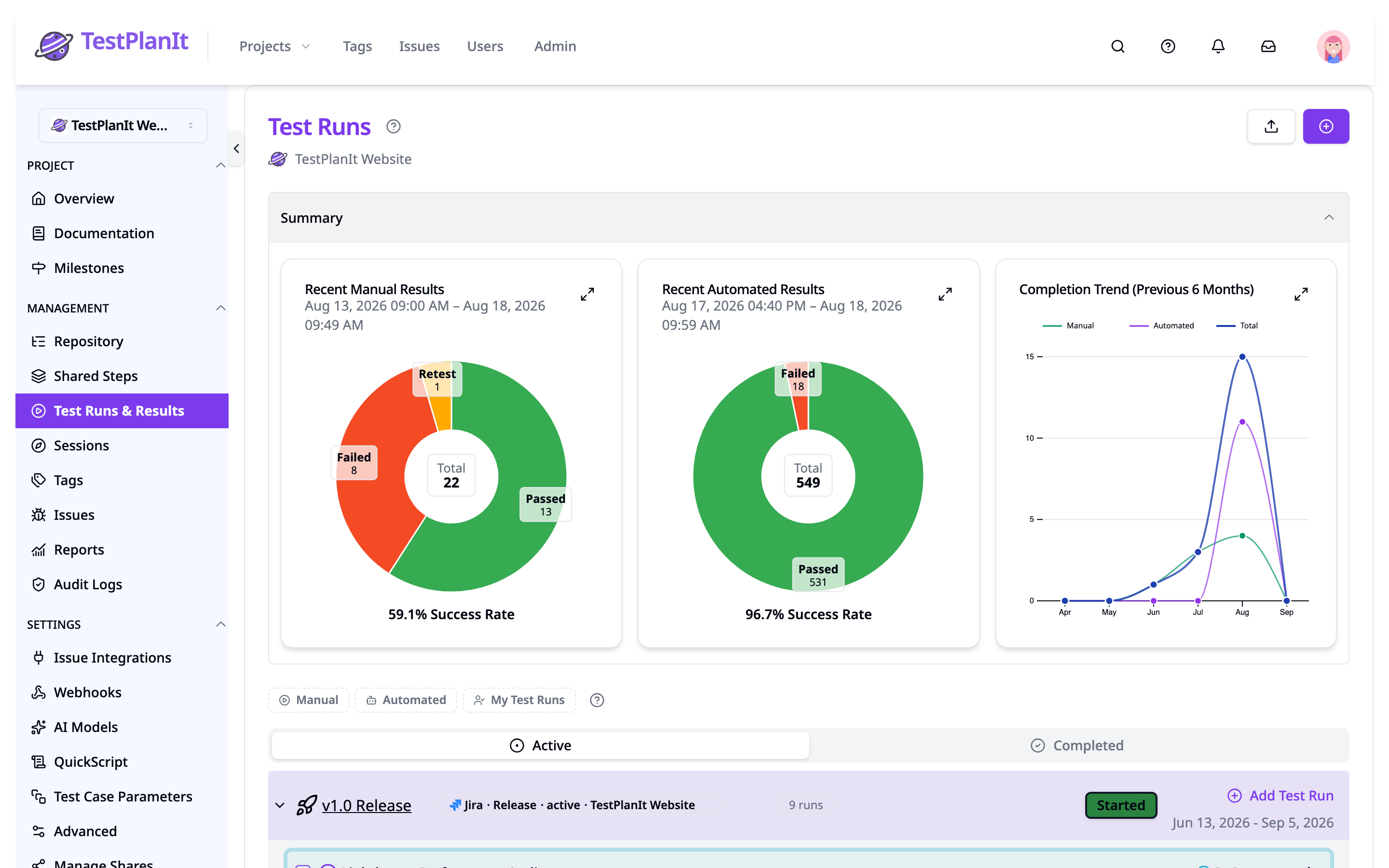
Summary Cards
The top of the page shows a row of summary cards inside a collapsible Summary section. Each card appears only when it has data to show, so the row adapts to the project's activity. Collapse the section with its header to give the run list the full page; the choice is remembered per project in your browser, like the filter chips.
Automation Runs in Progress
Shows the automated test runs currently executing in the project, so you can monitor CI activity without leaving the page. Each row displays:
- The run name, linking to the run's detail page. Hovering a truncated name reveals the full name.
- A miniature status bar showing the proportion of results by status (passed, failed, skipped, etc.).
- The number of results received so far.
- A spinner while the run is still actively receiving results. The spinner stops once the run has been idle past the project's Abandoned automation cleanup threshold (or after an hour of silence when the policy is off), so a run whose CI job died does not appear to be importing forever.
The card updates live as results arrive and disappears when no automated runs are in progress. It always reflects every in-progress automated run, regardless of which filter chips are on.
If a CI job is aborted or its agent is lost, the run it created never receives its completion call and stays in progress indefinitely. A system administrator can enable Abandoned automation cleanup to close such runs automatically after a configurable idle time; each project can override the threshold and the target state in its Advanced settings. Until then, an abandoned run can always be closed by hand with the Complete action in the run's menu.
Recent Manual Results
A donut chart summarizing manual test results recorded in the seven days leading up to the most recent result, grouped by status, with the overall success rate.
Recent Automated Results
The same seven-day summary for automated (imported) results. Results are grouped by the status they were mapped to during import.
Completion Trend
A line chart of test runs completed per month over the previous six months, split into manual, automated, and total series.
The chart cards include an expand button that opens the chart in a larger overlay for easier reading.
Filtering
Above the tabs sits a row of filter chips. Click a chip to switch it on, click it again to switch it off. Filters apply to both the Active and Completed tabs, so switching tabs keeps your view narrowed.
- Manual: Limits the list to manual test runs, including hybrid runs.
- Automated: Limits the list to automated test runs, including hybrid runs (manual runs that have also received automated results — see Hybrid Test Runs).
- My Test Runs: Limits the list to runs you take part in — see What counts as taking part.
Manual and Automated are independent switches rather than one either/or control. Turning both on shows every run, exactly as turning both off does, so switching a chip back off is always the way back to the full list.
A Clear All button appears whenever at least one chip is on and switches all of them off at once.
What counts as taking part
My Test Runs shows a run when any one of these is true for you:
- You created the run.
- You are assigned a test case in the run.
- You recorded a test result in the run.
These are the same three roles credited by the contributor avatars on each run row (see Test Run Item), so a run appearing under this filter is a run your avatar appears on.
Your chip selection is stored in your browser for each project, so returning to a project's Test Runs page restores the filters you last used there. Because they are stored locally rather than in the address bar, filters are personal — they do not travel to teammates through a copied link, and they do not follow you to another browser or device.
Active Tab
This is the default view. Active test runs are grouped by their associated milestone:
-
Milestone Groups: Each milestone with associated active test runs is displayed as a collapsible section header. The header shows:
- A chevron that collapses and expands the group (see Collapsing Milestone Groups)
- Milestone Icon and Name (See Milestone Details)
- A source badge if the milestone is synced from Jira, for example Jira · Sprint · active · Website. Click it to open the sprint or release in the tracker in a new tab. (Unlinking is not offered here — that lives on the Milestones pages, which own the milestone's lifecycle.)
- A count of the test runs in the group, including those in any child milestones
- Milestone Status Badge (e.g., Upcoming, In Progress, Completed)
- Milestone Dates (Start/End/Due)
- An Add Test Run button (
+icon) specific to that milestone, allowing you to quickly create a run linked to it.
-
Unscheduled Runs: Test runs not linked to any milestone are grouped under a special "Unscheduled" section header.
- This section also has an Add Test Run button to create an unscheduled run.
- It collapses and expands just like a milestone group.
-
Test Run Items: Within each group (Milestone or Unscheduled), individual test runs are listed. See Test Run Item Details for more information.
Test runs within milestone groups are sorted by creation date. Milestones themselves are sorted logically (often chronologically based on start/end dates or a defined order).
-
Empty State: If the project has no active test runs at all, a message is displayed along with a prominent Create Test Run button (if the user has permission). If runs exist but none match your filter chips, the message says so instead and the button is omitted — the fix is to clear a filter, not to create a run.
Collapsing Milestone Groups
Projects with many milestones produce a long page. Every group can be folded away:
- Click the chevron at the start of a group header to collapse or expand that group. Only the chevron toggles — the rest of the header stays clickable, so the milestone name still opens the milestone and the
+button still creates a run. - Hold Alt (⌥ on Mac) while clicking any group's chevron to expand or collapse all groups at once. Resting the pointer on a chevron for a moment reveals a hint naming the shortcut.
- Collapsing a parent milestone also hides the child milestone groups nested inside it, folding away an entire branch in one click.
- The run count in each header includes runs in child milestones, so a collapsed group still tells you how much it is hiding.
Which groups you collapsed is stored in your browser for each project and restored on your next visit. Like the filter chips, this is personal to you and your current browser. Groups that appear later — a new milestone, or one whose first run you just created — start expanded.
Changing a run's milestone
A run's milestone is set from Edit in its row menu, or for several runs at once from the bulk Edit action described under Bulk Operations. Completed runs cannot be reassigned.
Ready-to-complete notifications
You do not have to watch a run to know when it is finished. When the last outstanding case in a manual run receives a final result, TestPlanIt notifies the people who can close that run — Test Run Ready to Complete arrives in the notification bell (and by email, according to each recipient's preferences) with a Review and complete link straight to the run.
- Who is notified: anyone whose role grants canClose on Test Runs in that project, plus the administrators who can reach it.
- What counts as finished: every live case — and, for parameterized cases, every iteration — carries a status that counts as completed in the workflow. Cases left Untested, or sitting in a status such as Retest or Blocked, keep the run open.
- The run stays open. Completing is irreversible, so TestPlanIt prompts rather than acts. Use the Complete action when you are ready — see Run Details.
- It re-arms. If the run stops being fully executed — a result is deleted, or a case is added — the notification is sent again the next time it fills up.
Automated runs are not covered: they report through their CI job rather than case-by-case execution. To close automated runs that a lost CI agent left in progress, see Abandoned automation cleanup.
Bulk Operations
Several test runs can be changed in one step. Users with edit, complete, or delete permission for test runs see a checkbox at the start of each run row; without any of those permissions the checkboxes are hidden entirely.
Ticking at least one checkbox reveals a toolbar above the list. Each action button carries the number of selected runs it will apply to, and the X button deselects everything. On narrow windows the buttons collapse into a single ⋮ menu.
- Edit: Opens a dialog for changing the milestone, workflow state, and tags of every selected run. Tick the fields you want to change — untouched fields keep each run's current value. Tags are added to each run's existing tags, never replacing them.
- Complete: Completes every selected active run at once. Like the single-run dialog, you pick the done state and the completion date, and the same warning applies — completed runs can no longer be modified.
- Delete: Deletes the selected runs after confirmation. Results are retained for historical analysis, and deleted runs can be restored from the Trash.
Each action only applies to the selected runs it is valid for, and its count reflects that:
- Edit skips completed runs and automated runs — the same runs whose row menu offers no Edit entry.
- Complete skips runs that are already completed.
- Delete applies to any selected run, so on the Completed tab it is the one action available.
Actions you lack permission for are not shown, and every change is checked per run on the server — if some runs cannot be updated (for example, a state change blocked by a review gate), the rest still go through and a message reports how many failed.
Completed Tab
This tab displays a flat list of all test runs that have been marked as completed. Because the list is not grouped by milestone here, each row shows its own milestone rather than sitting under a collapsible header.
- Sorting: Completed runs are sorted by their completion date, with the most recently completed runs appearing first.
- Test Run Items: Each completed run is displayed using the Test Run Item component, showing key details.
- Filtering: The filter chips apply here too, alongside this tab's own search box. Filtering happens across the whole set of completed runs, not just the page you are looking at, and the result is re-paginated from the first page.
- Empty State: If there are no completed test runs, a message indicating this is shown. If the search box or a filter chip excluded them all, the message says nothing matched instead.